

Use quick replies
Drop one of your team's ready-made answers into a chat with a slash and a few letters, change it if you need to, and send.
Quick replies are your team's ready-made answers: opening hours, the price list, directions to the shop. Instead of typing the same thing twenty times a day, you call one up in two keystrokes.
Insert a quick reply
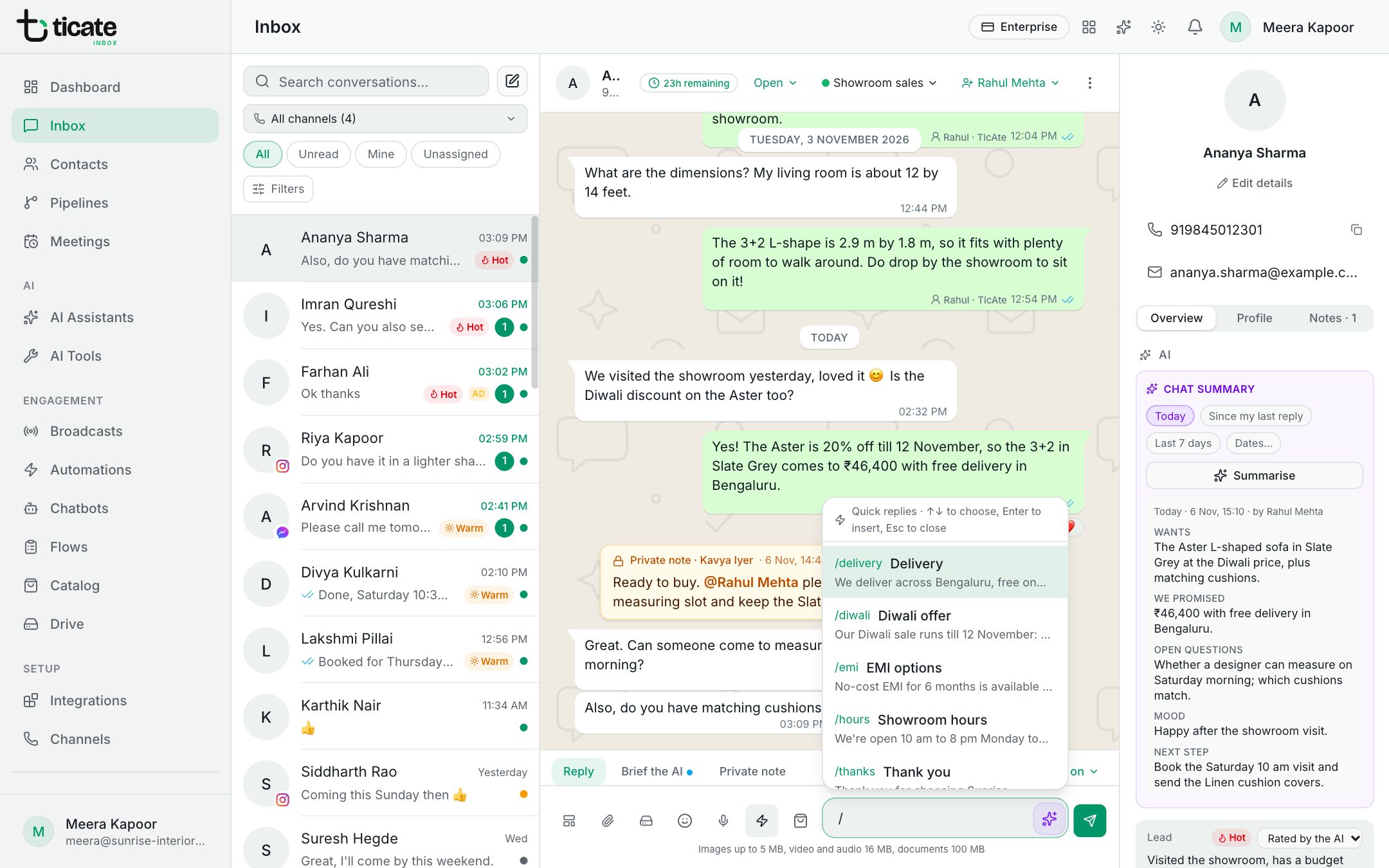
- In the message box, type /. The list of quick replies opens above the box.
- Keep typing to narrow it down, for example /hours or /price. Each quick reply shows its shortcut, its title and the start of its text.
- Choose one with the arrow keys and press Enter (or Tab), or click it.
- Its text lands in the box. Change anything you like, then send.
You can also click the lightning button next to the box: it types the / for you and opens the list. Press Esc to close the list and carry on typing.
Names fill in by themselves
A quick reply can contain the customer's name, their first name and your name. They are filled in from the chat as you insert it, so "Hi Meera, this is Arjun from Sunrise Interiors" needs no editing. If the customer's name is not known, the quick reply uses the fallback word it was written with, such as "there".
Quick replies with files
Some quick replies bring a file along, such as a brochure or a menu: a paperclip and a number in the list show how many. Choosing one adds the files to your message as attachments, ready to send with the text.
No quick replies yet
If the list says No quick replies yet, your workspace has not made any. The workspace owner, and anyone the owner allows, sees a link to Add one in Settings; everyone else is asked to speak to the owner. Quick replies are created under Settings → Quick replies; see Workspace settings.