

Hand a chat over to your team
When the assistant passes a chat to a person, and how to choose the message the customer gets, who is assigned, the tag added, and whether the assistant goes quiet.
The assistant hands a chat to your team when a person is needed. You decide what happens at that moment under Handing over to a person, at the bottom of the Behaviour tab.
When it hands over
The assistant hands over when:
- the customer asks for a person, is upset, or wants to cancel or complain;
- it can't answer from your instructions and knowledge;
- the customer wants something done, such as a booking, and no tool can do it. It says a colleague will arrange it instead of pretending it did.
You can add your own reasons in the instructions, for example "Hand over when the customer wants a quote for more than 50 units".
Choose what happens
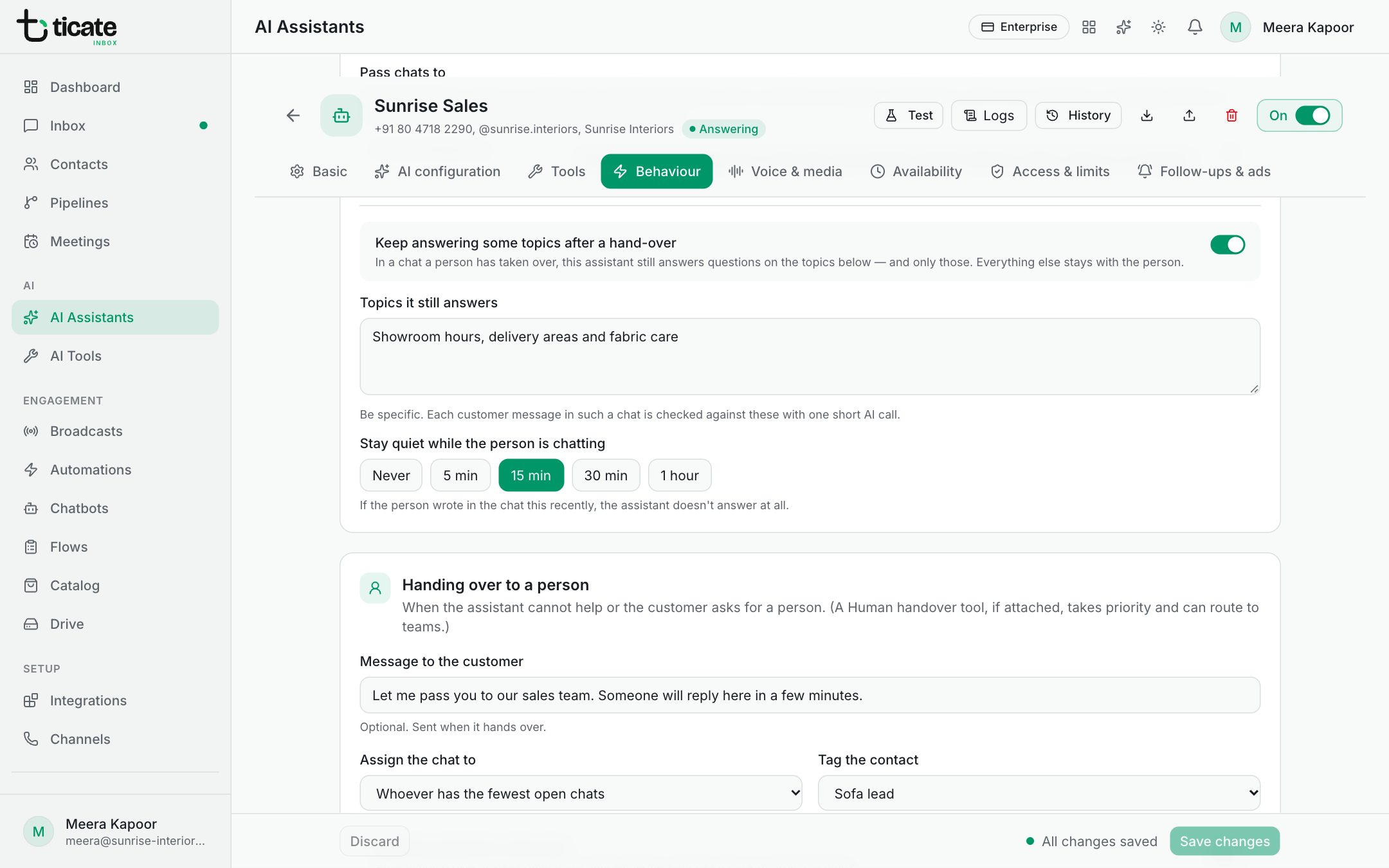
- Message to the customer: optional. Sent when it hands over, for example "A colleague will reply to you shortly."
- Assign the chat to: Whoever has the fewest open chats, A specific person (then choose the Person), or Nobody — leave it unassigned.
- Tag the contact: optional. A tag such as "Needs a person" lets your team filter for these chats.
- Stop the assistant in that chat: on, it stays quiet there until someone switches it back on from the inbox. Off, it keeps answering.
- Click Save changes.
The assigned person sees the chat in their inbox as usual. When they reply, the settings for a person stepping in apply.
Hand over to the right team
To let the assistant choose between teams, such as Sales for buyers and Support for complaints, give it a Human handover tool. You list the teams, their members and when each should get the chat, and the tool assigns a member by turns or to the least busy. When the assistant has such a tool, the tool decides the hand-over instead of the settings above. See Tools that act for the customer.
See every hand-over
In the assistant's logs, filter by Handed over to see each chat it passed to your team. In the test chat, a hand-over shows as Hands the chat to a person.