

Build a chatbot
Draw a chatbot with a greeting, a menu of buttons and answers, choose its keywords and numbers, and switch it on.
This example builds a bot for Sunrise Interiors: a customer writes "hi", gets three buttons, and each button leads to its own answer.
Start a chatbot
- Open Chatbots and click New chatbot.
- Type a name in the box at the top, such as "Welcome menu".
The canvas opens with the On message block. Blocks to add are on the left; the selected block's settings are on the right.
Choose when it starts and where
Click On message:
- Under Start when a customer sends, choose A message with one of these keywords or Any message.
- Type each keyword and press Enter, such as
hi,hello,menu. Turn on Forgive typos if you like. - Under Answer on these numbers, tick the numbers the bot answers on.
- Turn on Only when nobody is assigned and Not while a person is chatting to keep the bot out of chats your team is handling.
- Forget an unfinished chat after (minutes) decides when a customer who stopped half-way starts afresh.
Add the conversation
- Click Send buttons in the list on the left (or drag it onto the canvas).
- On the right, write the Message, such as "Welcome to Sunrise Interiors. How can we help?", and give the buttons titles: "Prices", "Book a visit", "Talk to us".
- Drag from the dot under On message to the new block to connect them.
- Add a Send media block with your price list, and connect the Prices dot to it.
- Add Ask a question: "Which day suits you?", with Keep the answer as
day. Connect Book a visit to it. - Add Hand to a person, and connect Talk to us to it. Under Then, choose Assign whoever has the fewest open chats, Assign a particular person or Just stop the bot.
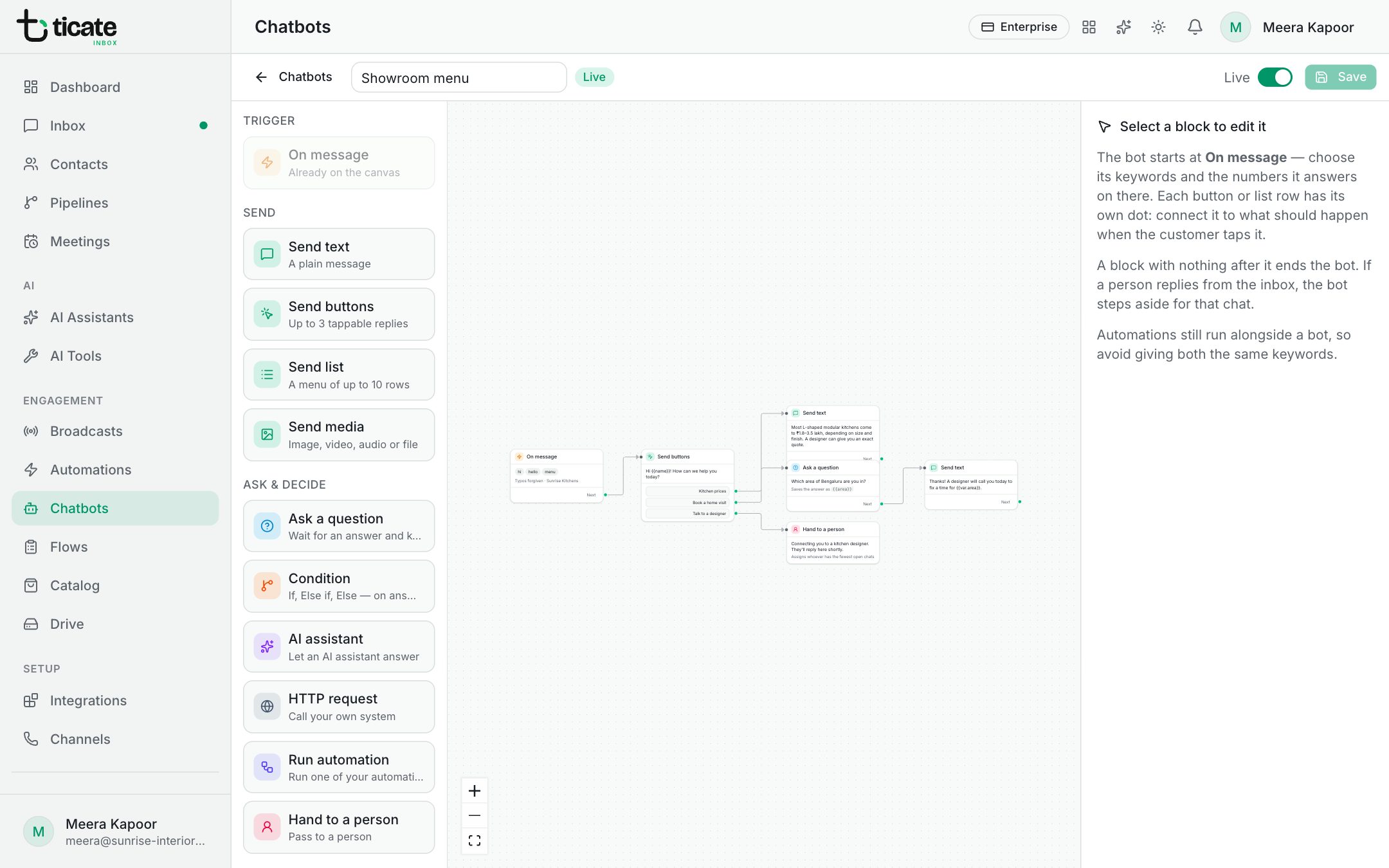
A block with nothing after it ends the bot. To remove a block or a line, select it and press Delete.
Use an answer you kept in later messages by typing it in double braces, such as {{day}}.
Switch it on
- Click Save to keep a draft.
- Turn on Live. The bot answers on the chosen numbers straight away.
If something is missing, such as an empty message or a block not connected to anything, the app says how many things to fix and selects the first one. Changes to a live bot reach customers when you click Save.
Automations still run alongside a bot, so avoid giving both the same keywords. See Who answers first.