

Template review and statuses
What Pending, Approved, Rejected and Draft mean, how long Meta takes, and how to change or delete a template.
Every template you create goes to Meta for review the moment you click Submit for approval. You can send it only once Meta approves it.
The statuses
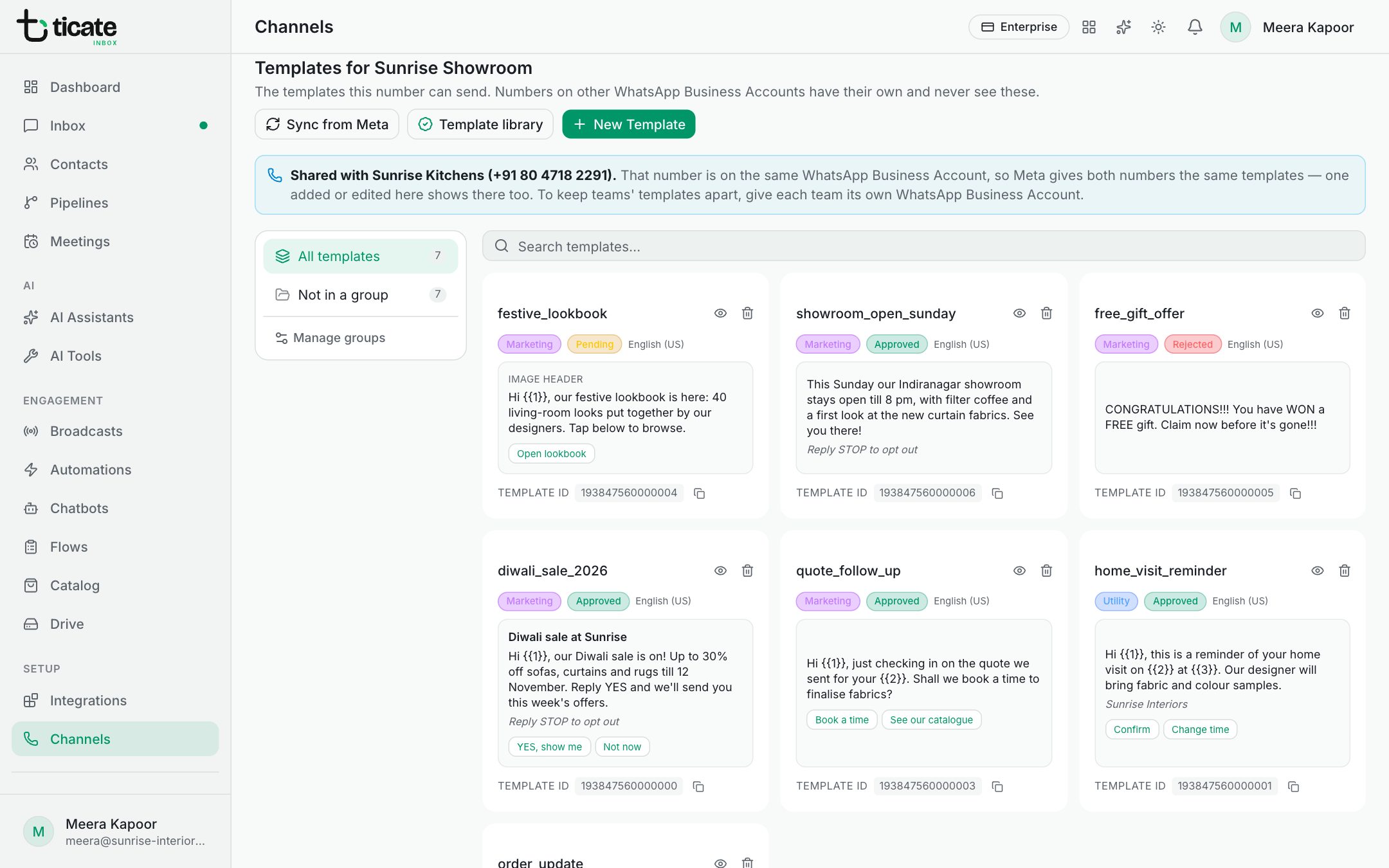
Each template card on a number's page shows its status:
- Pending: Meta is reviewing it. This usually takes a few minutes, and can take up to a day.
- Approved: ready to send from the inbox, broadcasts, automations and chatbots.
- Rejected: Meta refused it, or has since paused or switched it off. It can't be sent.
- Draft: not submitted to Meta.
The app records Meta's answer as soon as it arrives; reload the page to see it. Click Sync from Meta to bring all of the number's templates up to date with Meta at once.
An approved template can stop working
Meta keeps watching how customers react to each template. If many people block or report your business after receiving it, Meta may pause it for a while or switch it off. In TicAte it then shows as Rejected, and any broadcast using it fails. Use another template, or write a better one.
Find out why a template was rejected
TicAte shows that a template was rejected, but Meta keeps the reason in WhatsApp Manager, under its message templates. See Why templates get rejected for the usual causes.
Change a template
A submitted template can't be edited in TicAte. To change the words, create a new template with a new name, wait for it to be approved, then delete the old one.
Delete a template
- On the number's page, click the bin on the template's card.
- Confirm.
The template is deleted at Meta too, in every language it has, and Meta won't let you use the same name again for 30 days. Broadcasts already sent with it keep their reports.
Keep templates tidy
With many templates, group them. Click Manage groups to make groups such as "Orders" or "Festive offers", then pick a group on the left to see only its templates. Search templates… finds one by name.
Click the eye on a card to preview a template as the customer sees it. The template ID under the card is what Meta support asks for if you contact them about it.