

See what an automation did
Check each run of an automation, which steps worked and why one failed, and pause, copy or delete an automation.
Every time an automation runs, the app keeps a record of it: who it ran for, which steps ran and whether each one worked. Use it to check a new automation, or to find out why a customer did not get a message.
Open the logs
- Open Automations.
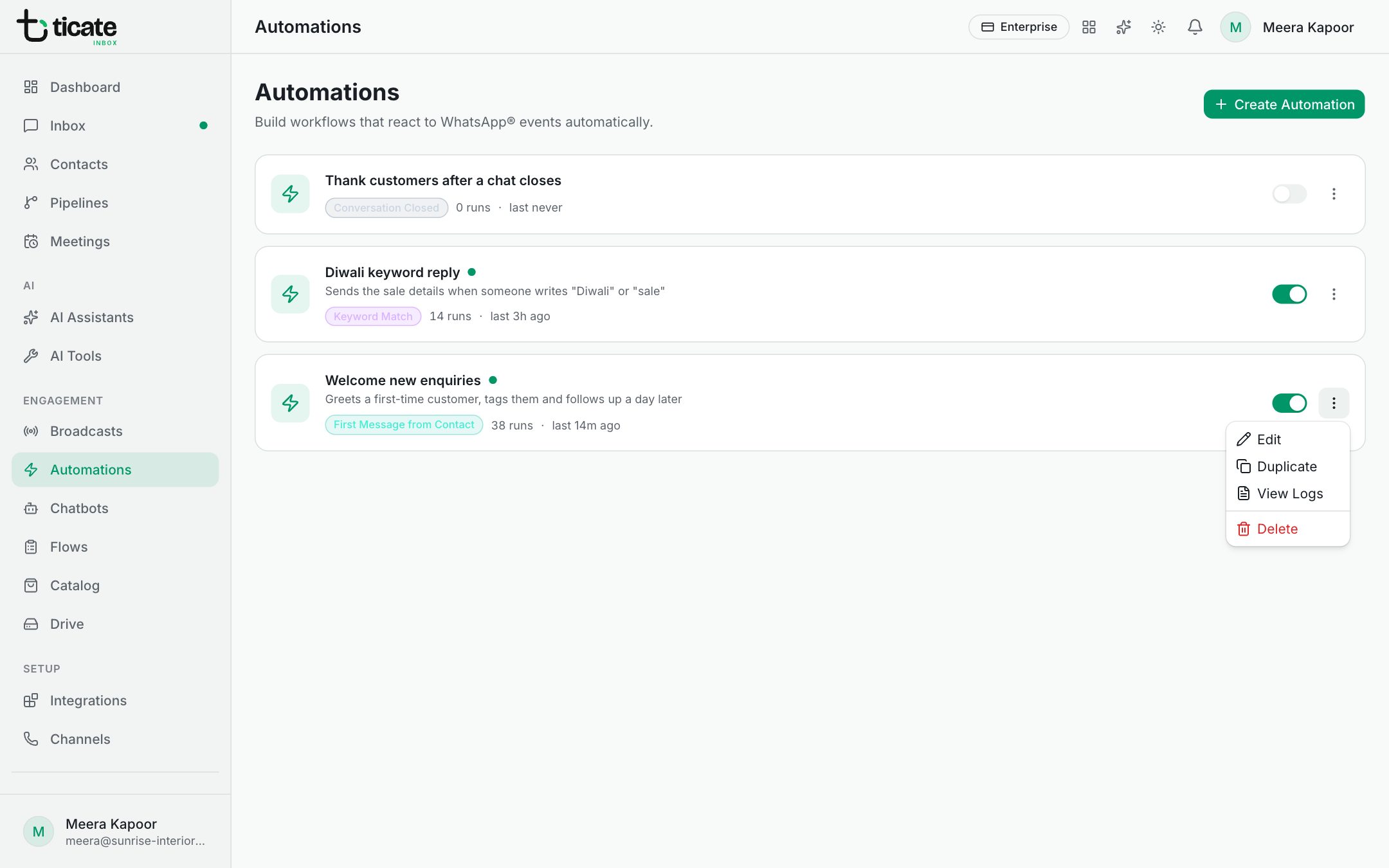
- Click the three dots on the right of the automation, then View Logs.
The page lists the latest runs, newest first. Each line shows:
- the result: success when every step worked, partial when some did, failed when the run stopped;
- the contact it ran for;
- what started it and how many steps ran;
- how long ago.
Click a line to see each step with a tick or a cross, and the reason when one failed, such as "More than 24 hours have passed since the customer last wrote, so only an approved template can be sent now."
If there are no runs yet, the page says No executions yet. Send the trigger yourself from a test phone, such as the keyword, to see a run appear.
Common reasons a step fails
- The 24-hour window has closed. Send Message, Send Buttons / List and Send File (Drive) only work within 24 hours of the customer's last message. After a Wait of a day or more, use Send Template.
- The template isn't approved, or has been paused by Meta.
- The AI assistant is switched off.
- The number has a problem, such as a disconnected number. The message says what to do.
Run counts on the list
On Automations, each automation shows how many times it has run and when it last ran, such as "12 runs · last 3h ago". A chatbot that runs it is named there too.
Pause, copy or delete
- Pause: click the switch beside the automation. If a chatbot runs it, the app warns you that the chatbot's block will then do nothing.
- Duplicate: from the three dots. The copy is a good start for a similar automation.
- Edit: click the automation's name, or Edit in the menu.
- Delete: from the three dots. This removes the automation and its logs for good.
If an automation and a chatbot could answer the same messages, a warning under the automation says so. Click Don't run when a chatbot answers to keep the customer from getting two replies.