

The Meetings page
See every meeting customers booked with your AI assistant or your team, move or cancel one, and mark past meetings done or no-show.
Meetings lists the meetings customers have booked: demo calls, site visits, consultations. They are booked on WhatsApp by your AI assistant, or by your team from a chat. Meetings are grouped by day, with the time and length on the left.
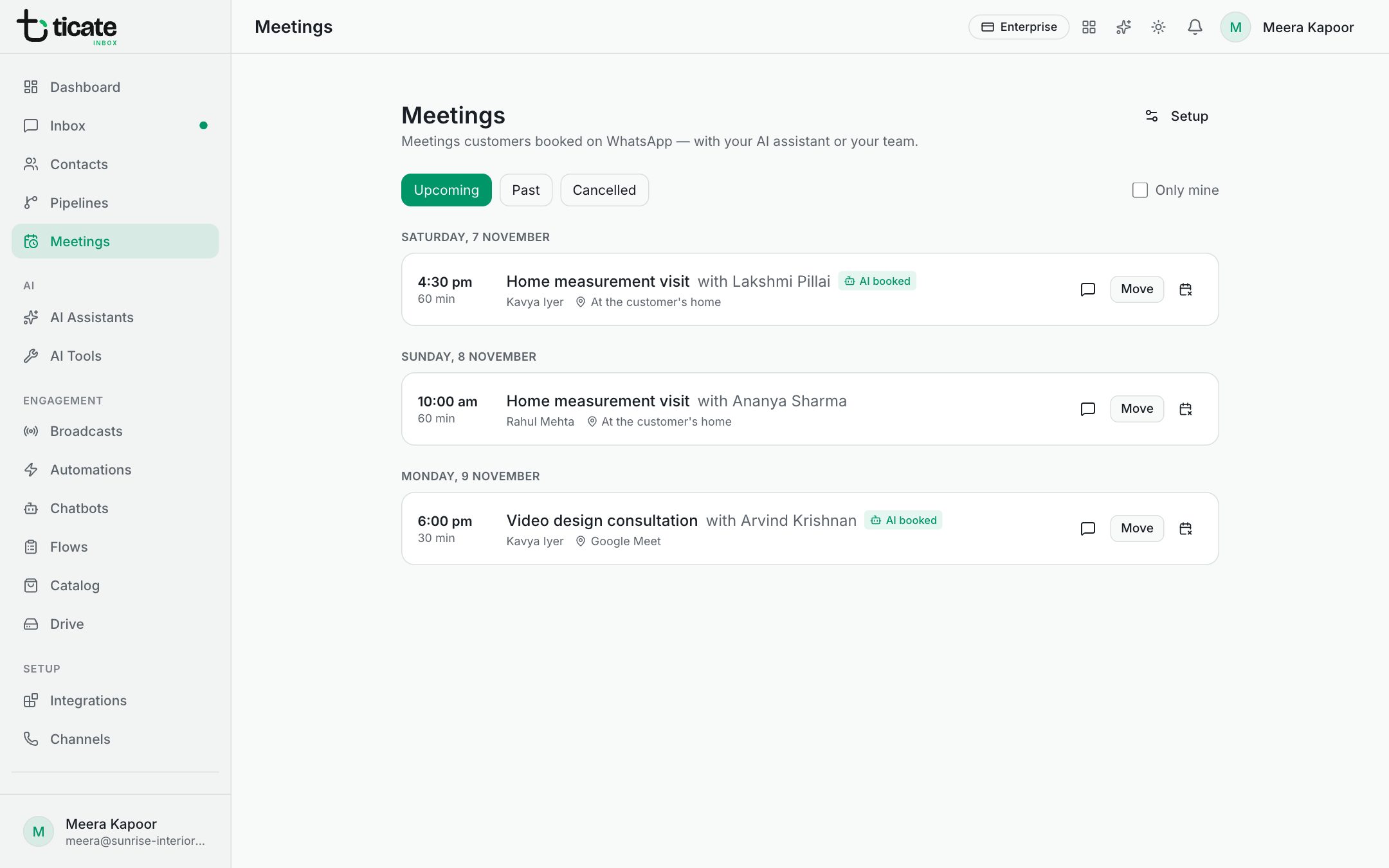
What each meeting shows
- The meeting type and with the customer's name.
- AI booked when your assistant booked it.
- Who is taking it (You, a teammate, or Unassigned) and where: an address, a link or other details.
- Any notes left when it was booked.
The chat button opens the customer's chat in the inbox.
Upcoming, past and cancelled
Switch between Upcoming, Past and Cancelled at the top.
Owners, admins and self admins see everyone's meetings; tick Only mine to see just your own. Everyone else sees the meetings they take.
Move a meeting
- Click Move on an upcoming meeting.
- Click a new time, or choose a day in the date box first. Only times someone is free are offered.
- Leave Tell the customer on WhatsApp on to let them know.
- Click Move.
Cancel a meeting
- Click the cancel button (the calendar with a cross) on an upcoming meeting.
- Add a Reason if you like. It is for your team.
- Leave Tell the customer on WhatsApp on to let them know.
- Click Cancel meeting. Keep it closes the box without cancelling.
Cancelled meetings move to Cancelled, with the reason.
After the meeting
Under Past, mark each meeting Done or No-show, so you know who turned up.
Set up meetings
The button at the top right says Setup, or My hours for agents. See Set up meeting types and working hours.
If there are no meetings yet, set up a meeting type first, then give your AI assistant a Book a meeting tool, or book one from any chat. See Book a meeting from a chat.