

Send a broadcast
Send one approved template to many customers at once, in four steps: template, audience, personalise, send.
A broadcast sends one WhatsApp message to many customers at once, such as a festive offer or a reminder about a sale. Because most of these people have not written to you in the last 24 hours, a broadcast always uses an approved message template.
Open Broadcasts in the left menu to see every broadcast you have sent, with its delivery, read, reply and failure rates.
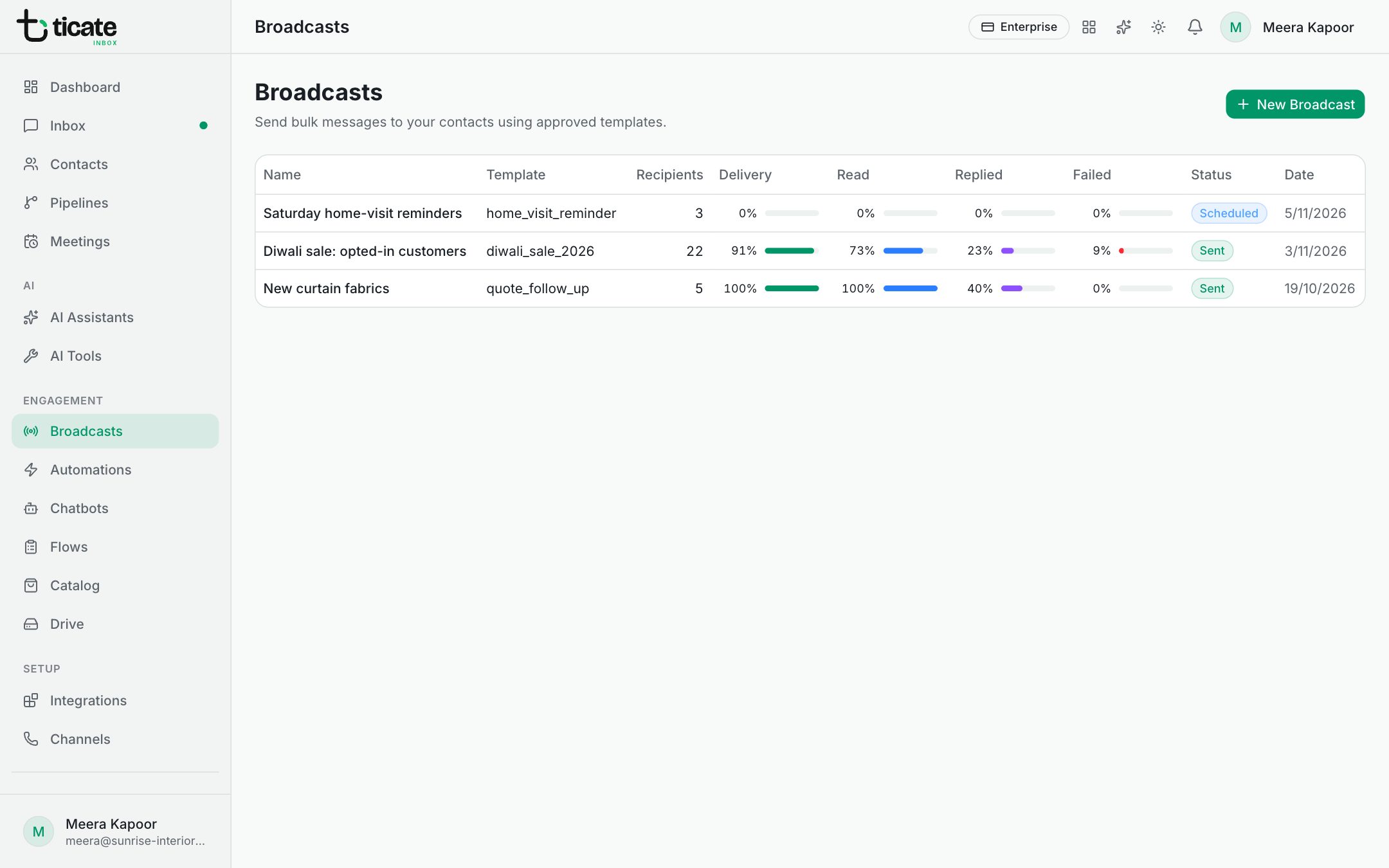
Create a broadcast
- On Broadcasts, click New Broadcast.
- If you have more than one WhatsApp number, choose the number under Send from. Only the templates that number can send are offered.
- Template: click the template you want, then Next. Each card shows its category, language and status. Pick one marked Approved: a template still waiting for Meta, or rejected, cannot be delivered.
- Audience: choose who receives it, then Next. See Choose who gets a broadcast.
- Personalize: fill in each variable in the template, such as the customer's name. The Live Preview shows the message as it will look on a phone. Next stays greyed out until every variable has a value.
- Send: type a Broadcast Name your team will recognise, such as "Diwali offer 2026", and check the Summary.
- Under When, keep Send now, or pick Schedule for later (see Schedule a broadcast).
- Click Send Broadcast, then Confirm & Send.
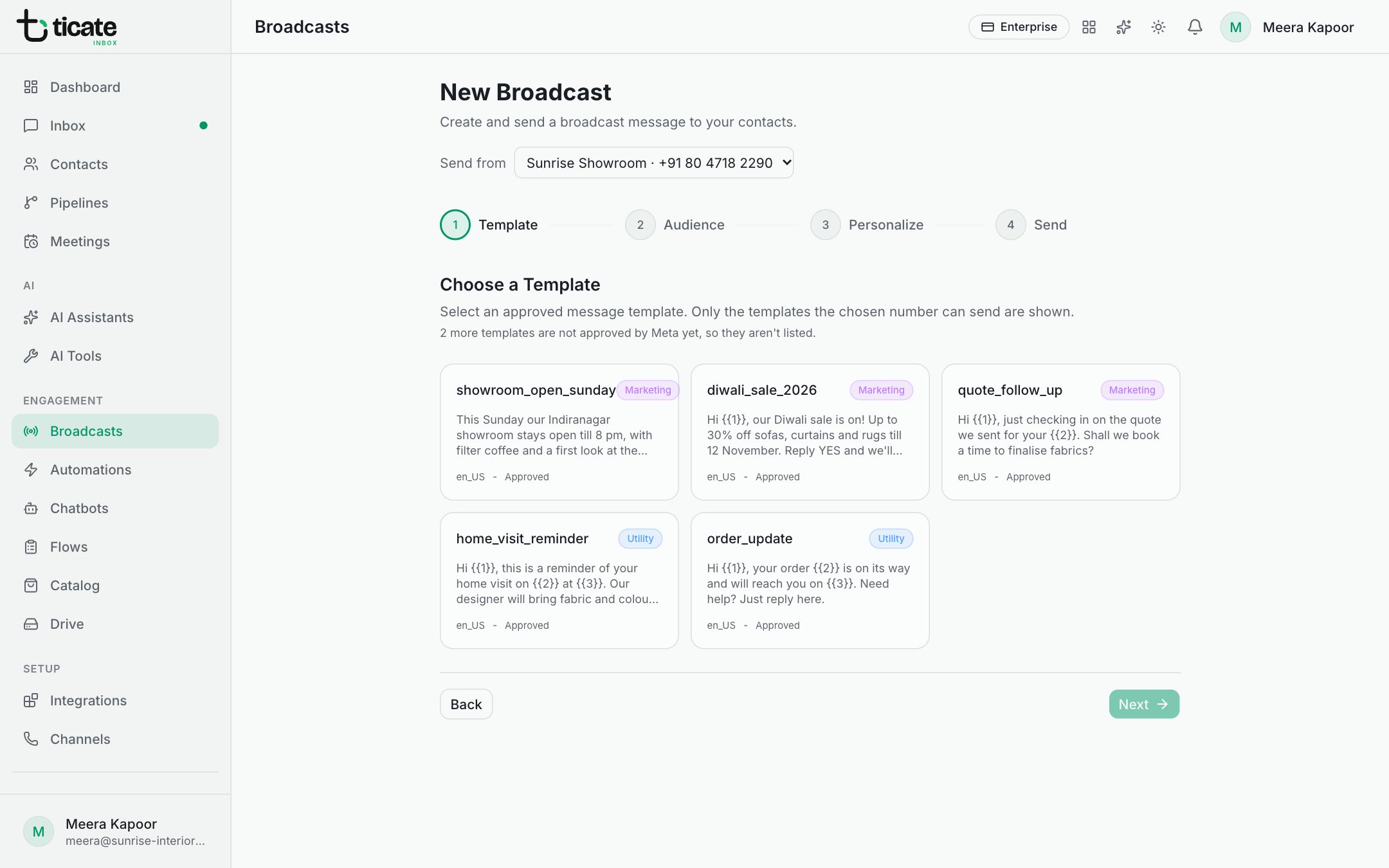
The app opens the broadcast's own page, where the numbers fill in as messages are delivered and read. You can close the tab: sending carries on.
Personalise each message
For each variable, pick a Mapping Type:
- Static Value: the same text for everyone, such as an offer code.
- Contact Field: the person's Contact Name, Phone Number, Email Address or Company.
- Custom Field: one of your own contact fields.
If the template has a picture, video or document at the top, everyone gets the sample it was approved with, unless you click Choose from Drive and pick another file of the same kind.
Save it for later
Not ready? On the last step, give it a name and click Save as Draft. It appears on Broadcasts marked Draft.