

Translate chats and voice notes
Read any message in your own language, translate a whole chat as it comes in, send your reply in the customer's language, and turn voice notes into text.
With Tic Buddy, your team can talk to every customer in their language. You read in yours, and the customer gets theirs. An owner or admin has to turn it on first.
Choose the language you read in
- In a chat, click the Tic Buddy button (the sparkles) inside the message box, next to Send.
- Under I read in, choose your language.
It is kept in your browser, so each person can read in their own language.
Translate one message
Point at a message (on a phone, press and hold it) and click the translate button in the small toolbar. The translation appears under the message, marked Translated with the language it was written in. Click the cross on it to hide it.
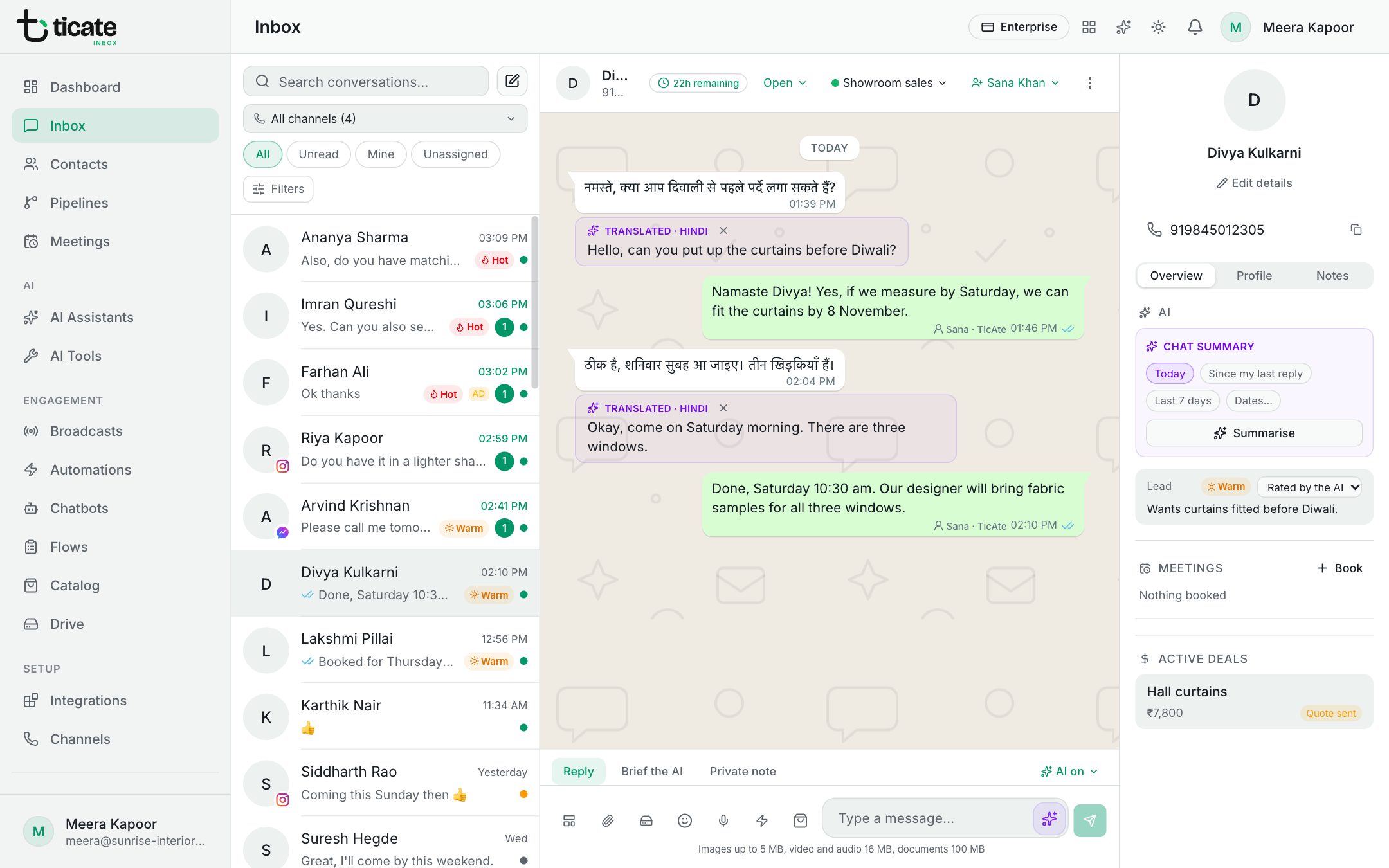
A message is translated only once for each language. When anyone opens it again in the same language, it shows straight away at no cost.
Translate a whole chat
Open the Tic Buddy button and click Auto-translate this chat. From then on, the customer's messages are translated into each reader's language as they arrive. Click it again to switch it off. The setting belongs to the chat, so it applies to everyone on your team who opens it.
Send your reply in the customer's language
- Type your reply in your own language.
- Open the Tic Buddy button and click Send in the customer's language.
- A card above the box shows what you wrote and the translation. Tic Buddy works out the language from the customer's own recent messages.
- Check it, then click Send in Hindi (or whichever language it shows). Or click Edit in the box to change it first.
Turn a voice note into text
Point at a customer's voice note and click the voice note to text button. After a moment the words appear under the voice note, for your whole team. Translate it like any other message if it is in another language.