

Who it answers, and spend limits
Keep the assistant away from staff and test phones, or let it answer only a few contacts, and cap what it can spend per day, per month and per customer.
The Access & limits tab decides who the assistant replies to and how much it may spend.
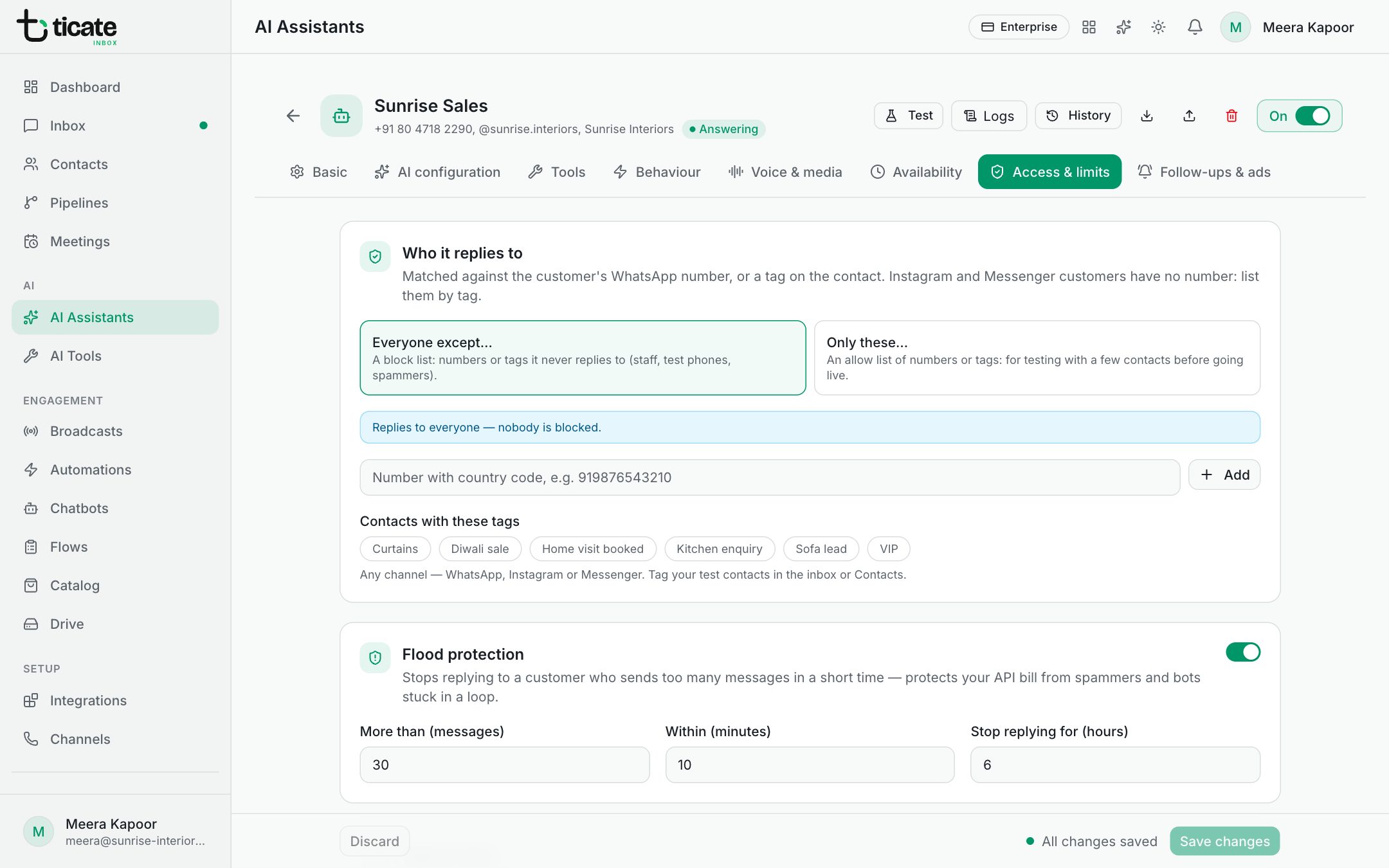
Who it replies to
Choose one:
- Everyone except…: a block list. The assistant never replies to the numbers or tags you list, such as your staff, test phones or spammers. With nothing listed, it replies to everyone.
- Only these…: an allow list. It replies only to the numbers or tags you list. Use it to try the assistant on a few contacts before going live. With nothing listed, it replies to nobody.
The line under the choice always says, in words, who it replies to.
To list a number, type it with the country code, such as 919876543210, and click Add. To list contacts by tag, click the tags under Contacts with these tags.
Instagram and Messenger customers have no phone number, so list them by tag. Tag them in the inbox or in Contacts first, for example "AI test".
Flood protection
Flood protection stops replying to a customer who sends too many messages in a short time, such as a bot stuck in a loop. It protects your AI bill. It is on unless you switch it off, with these numbers to start:
- More than (messages): 30
- Within (minutes): 10
- Stop replying for (hours): 6
While a customer is held back, the chat's AI button in the inbox says AI blocked. Switch back on now in that menu lifts it early.
Spend limits
The assistant stops replying once a limit is reached, and starts again when the period resets. Leave a box empty for no limit.
- Per day ($) and Per month ($): the estimated spend on this assistant's key, in US dollars.
- Replies per customer per day: a cap on replies to one customer. It starts at 60.
Spend is estimated from the words in and out (tokens) and the model's price. For a model TicAte doesn't know the price of, enter your own under Your prices (optional) on the AI configuration tab, or the limits can't count it. See Choose the AI provider, model and key.
Click Save changes after any change. The assistant's card on the AI Assistants page shows its Est. spend (30d), and its logs show the cost of each reply.