

Private notes and mentions
Leave a note in a chat that only your team sees, mention a teammate so they are told, and know the difference from contact notes.
A private note is a message for your team, written inside the chat. It sits between the customer's messages, in yellow, so whoever picks the chat up next knows what has happened. The customer never sees it.
Add a note
- Open the chat.
- Above the box at the bottom, click Private note. The box turns yellow.
- Type the note and press Enter, or click Add note. Shift+Enter starts a new line.
- Click Reply to go back to answering the customer.
Each note shows a lock, Private note, who wrote it and when.
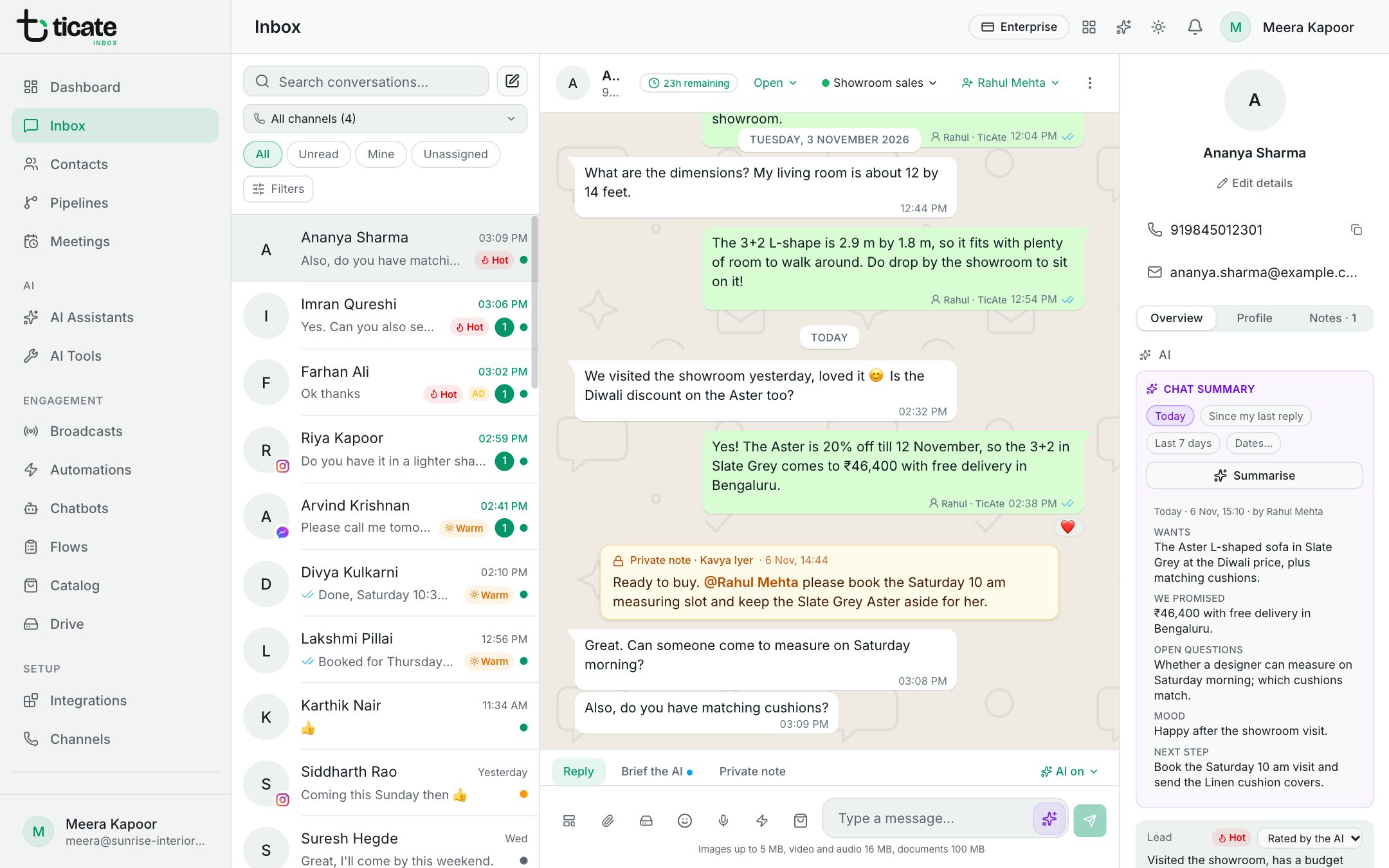
Mention a teammate
Type @ in a note and a list of your team opens. Keep typing to narrow it, then click a name. When you add the note, the people you mentioned get a notification saying you mentioned them. If they use the TicAte Inbox mobile app, they can get it on their phone too.
Use a mention when you need someone to act: "@Priya can you confirm the delivery date for this order?"
Only people who can see the chat can be mentioned, and you never notify yourself.
Delete a note
Hover over the note and click the bin. You can delete your own notes; owners and admins can delete anyone's.
Good uses for notes
- A price you quoted, so a teammate quotes the same.
- A promise, such as "Call back on Friday about the fitting."
- Why you are handing the chat over, before you assign it to someone else.
Notes on the chat, notes on the customer
There are two kinds of notes, and they live in different places:
- Private notes belong to this chat and sit in the conversation, in time order.
- Notes in the panel beside the chat belong to the customer's contact. They follow the customer to any chat and also show on their contact in Contacts. See The customer panel beside a chat.