

Schedule a broadcast
Pick a date and time for a broadcast to go out, then send it early or cancel it if plans change.
A broadcast does not have to go out the moment you finish it. Schedule it for the morning of a sale, or for when your customers are most likely to read it.
Schedule a broadcast
- Build the broadcast as usual: template, audience and personalisation. See Send a broadcast.
- On the Send step, under When, choose Schedule for later.
- Pick the date and time. It is your own time, and the app shows the time zone under the box.
- Click Schedule Broadcast, then Confirm & Schedule.
The time must be at least 5 minutes from now and within the next 60 days. If it is not, the app says so under the box and the button stays greyed out.
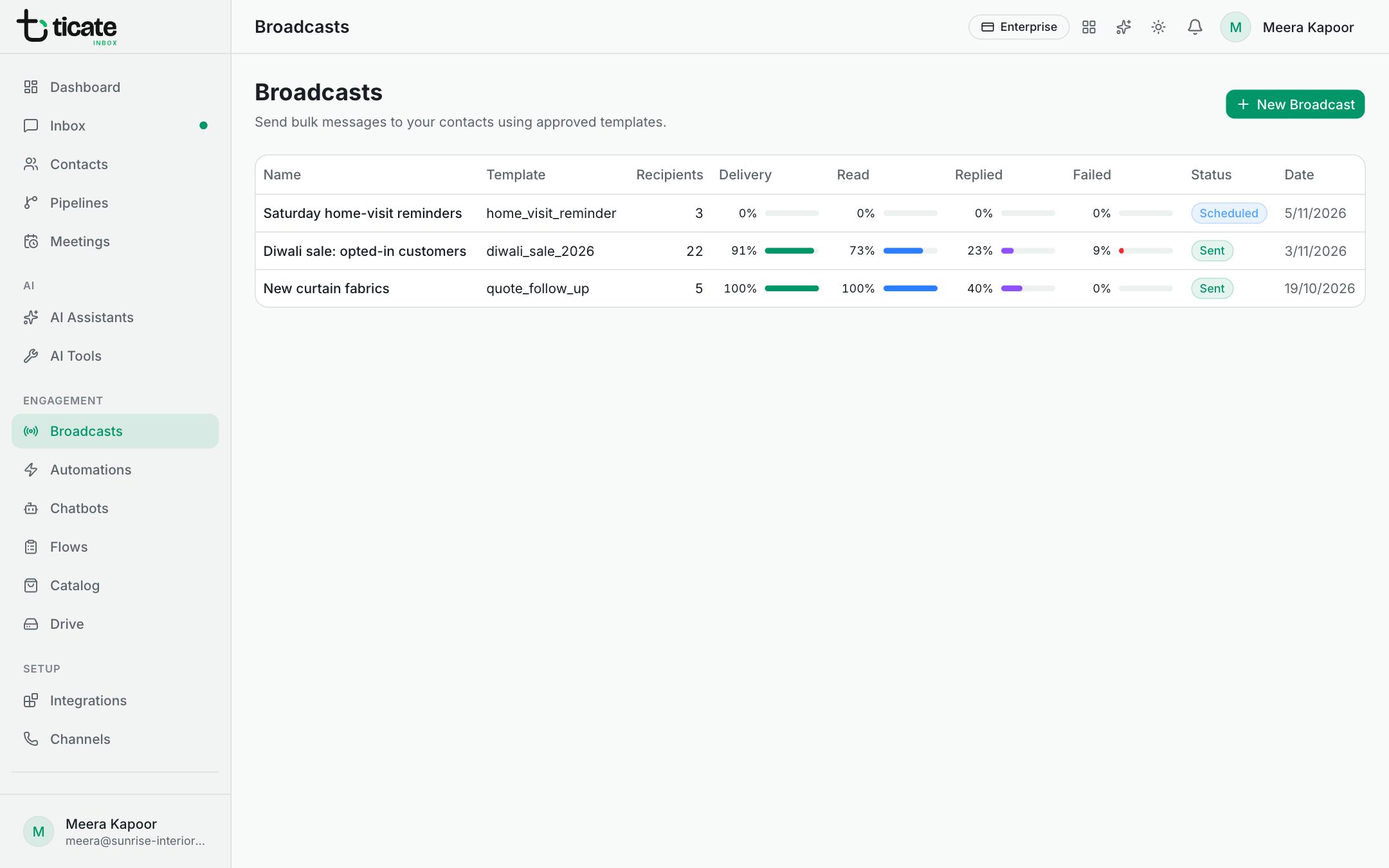
The broadcast appears on Broadcasts marked Scheduled, and goes out by itself at that time. Nobody needs to be signed in.
Who receives a scheduled broadcast
When the time comes, the app works out the audience again: people who now have the tag, match the field or segment, or match in TicAte CRM are included, and anyone who has opted out since is left out. A broadcast to an uploaded file goes to exactly the numbers in the file.
Send it now, or cancel it
Open the broadcast from Broadcasts. At the top it says Scheduled for and the date, with two buttons:
- Send now starts it straight away. Once it starts, it can't be stopped.
- Cancel schedule stops it from going out and keeps it as a draft.
Drafts
Save as Draft on the last step keeps a note of a broadcast, its name and template, without sending or scheduling it. It is listed as Draft. A draft has no send button of its own: when you are ready, create a new broadcast with the same template. A draft can be deleted from its page with Delete, then Confirm.