

Create a WhatsApp form (flow)
Build a form that opens inside WhatsApp, for bookings, orders or leads, from a ready-made start or a blank one.
A flow is a form that opens inside WhatsApp. The customer taps a button in the chat, fills in a few screens, such as a date, a time slot and their name, and sends it without leaving WhatsApp. The answers come straight back to you.
Flows work on WhatsApp numbers only.
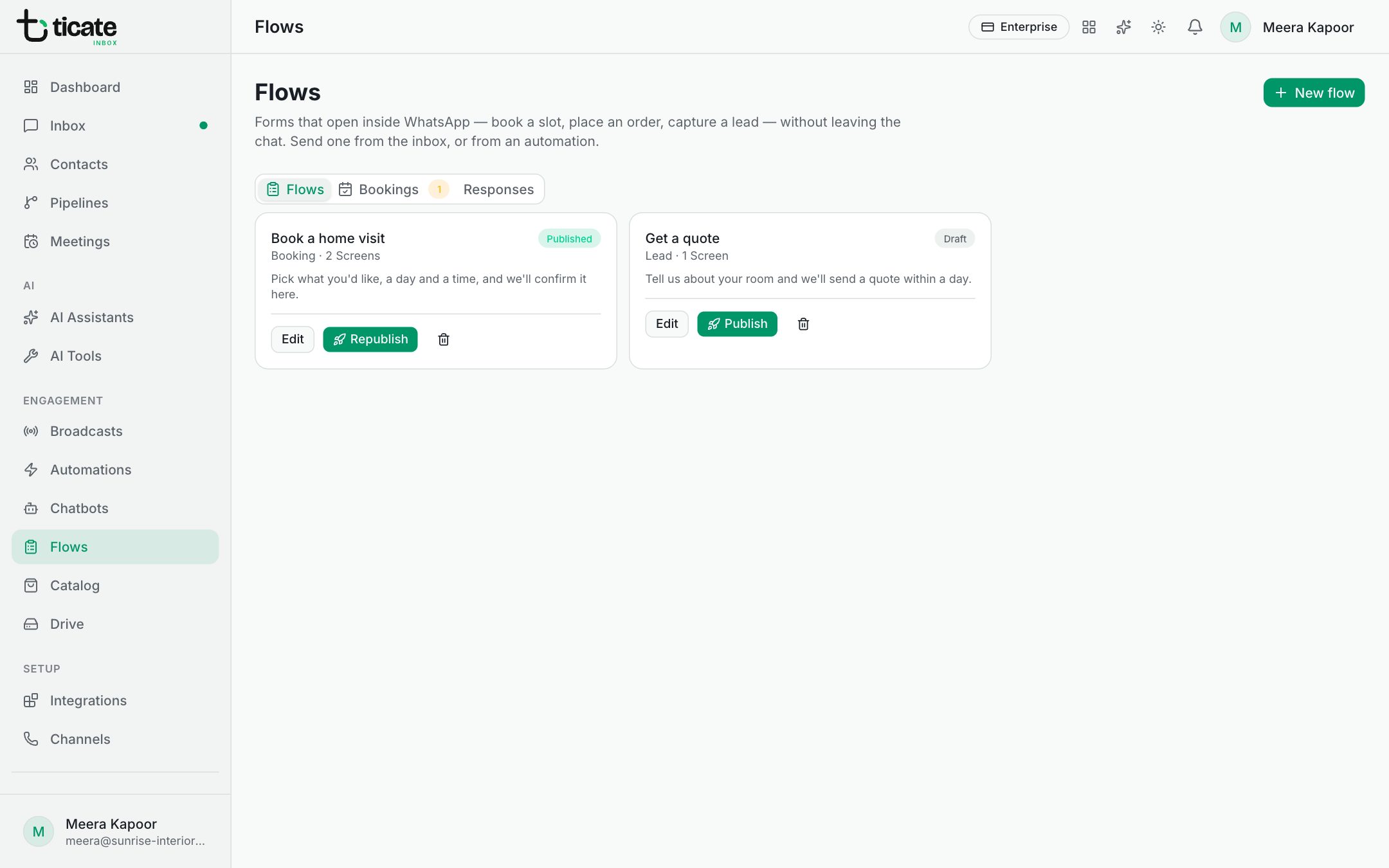
Start a flow
- Open Flows in the left menu and click New flow.
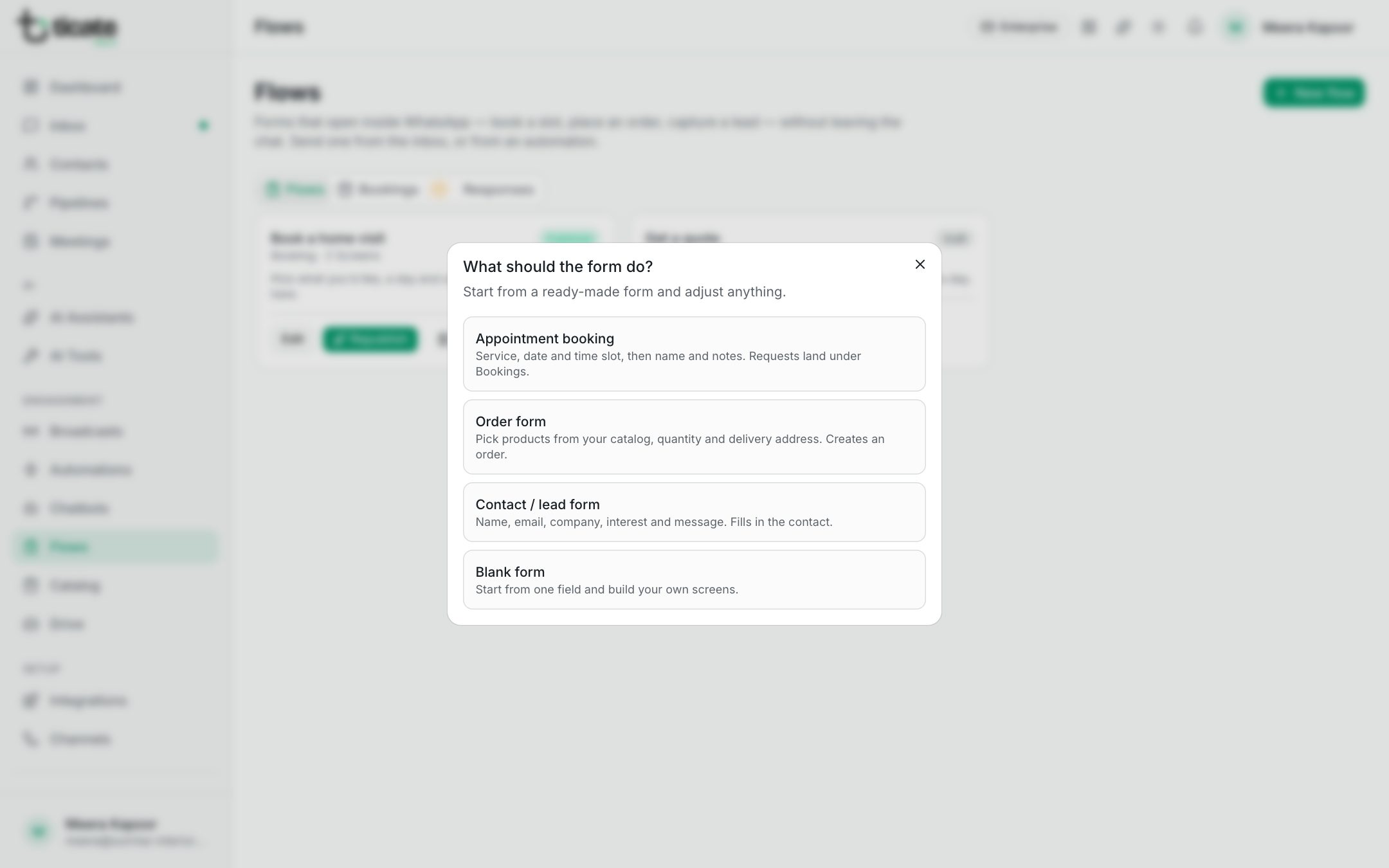
- Under What should the form do?, pick a starting point:
- Appointment booking: service, date and time slot, then name and notes. Requests land under Bookings.
- Order form: pick products from your catalog, quantity and delivery address. Creates an order.
- Contact / lead form: name, email, company, interest and message. Fills in the contact.
- Blank form: start from one field and build your own screens.
- The editor opens. Give the flow a name in the box at the top, such as "Site visit booking".
The message in the chat
Under Message in the chat, write what the customer sees before opening the form: a Header (optional), the Body, and the Button label that opens it, such as "Book a visit".
Screens and fields
The form is a series of Screens. Click one to edit it, or Add screen for another. Each screen has a Screen title, an optional Heading and Text, and a Button label to move on, such as "Continue".
Under Fields, click Add field and set:
- Label: the question, such as "Preferred date".
- Type: Short text, Long text, Email, Phone, Number, Date, Dropdown (pick one), Radio buttons (pick one), Checkboxes (pick many) or Opt-in checkbox.
- Options for the pick-one and pick-many types, one per line.
- Earliest and Latest (days from today) for a date.
- Required, and an optional helper text.
The Key (in the data) is filled in from the label; it names the answer in your responses, so keep it short and clear.
The preview on the right shows the screen as it looks on a phone. Problems, such as a screen with no fields, are listed at the top.
Save it
Click Save. The flow is listed as Draft until you publish it. See Publish a flow.