

Keep your files in Drive
Upload the pictures, videos and documents you send often, sort them into folders, and find them again in seconds.
Drive keeps the files your team sends again and again: price lists, brochures, product photos, a how-to video. Upload them once, sort them into folders, and attach them in any chat without hunting through your computer.
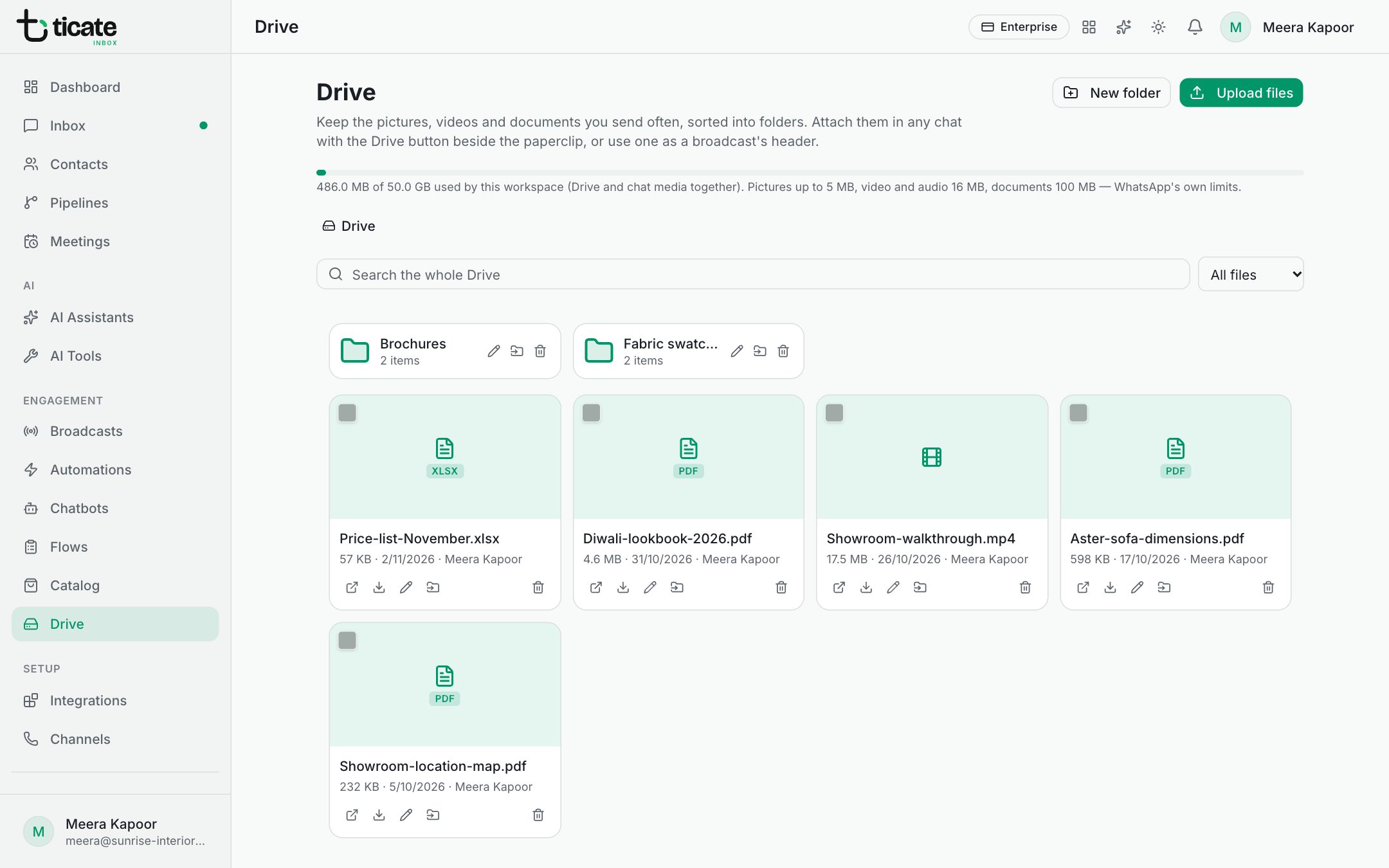
Open Drive under Engagement in the left menu. Everyone in the workspace sees the same Drive.
Upload files
- Open the folder the files belong in, or stay at the top of the Drive.
- Click Upload files (inside a folder it reads Upload to and the folder's name), and choose one or more files. You can also drag files from your computer onto the page.
Files upload one at a time; the button counts down while they go. WhatsApp's own size limits apply: pictures up to 5 MB, video and audio up to 16 MB, documents up to 100 MB.
Sort files into folders
- Click New folder, type a name such as "Offers" and click Create. A folder made inside another folder sits inside it.
- Click a folder to open it. The path above the files (Drive, then each folder) takes you back up.
- To move files, tick them (the box in each file's corner), then click Move to folder and choose where they go. Select all ticks every file you may move.
- A single file or folder has its own Move button. A folder cannot go inside itself.
Find a file
Type part of its name in Search the whole Drive. The search covers every folder, and each result shows the folder it is in; click that to go there. The list beside the search narrows it to Pictures, Videos, Audio or Documents.
Rename, download and delete
Each file has buttons to open it, download it, rename it, move it and delete it. A file's name is what customers see when it is sent as a document.
Anyone in the workspace can add files and folders. Renaming, moving and deleting is for whoever added the file or folder, and for owners, admins and self admins.
How much space is used
When your plan sets a limit, a bar at the top shows how much this workspace uses. Drive files and the media in your chats count together. The bar turns red when it is nearly full.
To send a file from the Drive, see Send files from Drive.