

Tag, update or delete many contacts at once
Select contacts on the list, or every contact that matches a search or filter, then add or remove a tag, set a field, or delete them.
After an import or a trade show, you may want to tag two hundred people as "Expo 2026" or set their City in one go. Select them, then act on all of them together.
Select contacts
- Tick the box at the start of each row you want.
- Tick the box at the top of the list to select the whole page.
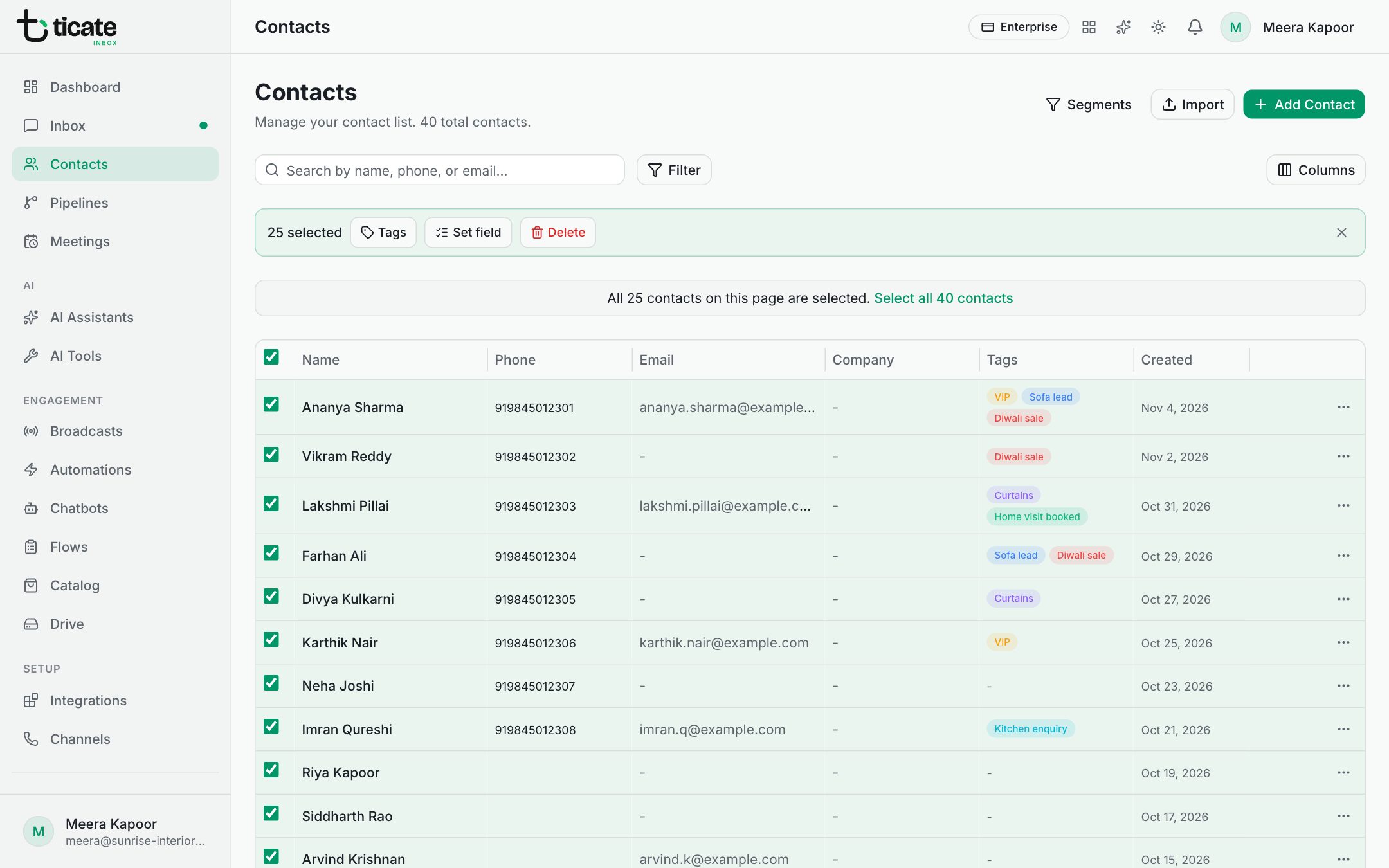
- With a whole page selected, the line above the list offers Select all with the total, to take every contact that matches your search and filters, not just the ones on this page. Select only this page goes back.
A bar appears above the list with how many are selected, and the actions.
Add or remove a tag
- Click Tags in the bar.
- Click a tag to add it to everyone selected.
To take a tag off instead, hold Shift while you click it. A message confirms how many contacts changed.
Set a custom field
- Click Set field.
- Choose the Field and type or pick the Value.
- Click Apply to with the number of contacts.
Leave the value empty to clear that field on everyone selected.
Delete contacts
Owners and admins see Delete in the bar. The app asks you to confirm first. Deleting contacts also deletes their chats and message history, and cannot be undone. If some of the contacts have chats, it only works when the workspace allows deleting conversations (Allow deleting conversations under Settings → Team).
Clear the selection
Click the cross at the end of the bar.