

AI summary, lead rating and briefing the AI
Get a summary of a long chat, read the handover brief the AI leaves, see or set how hot a lead is, brief the AI for one chat, and check what it remembers about a customer.
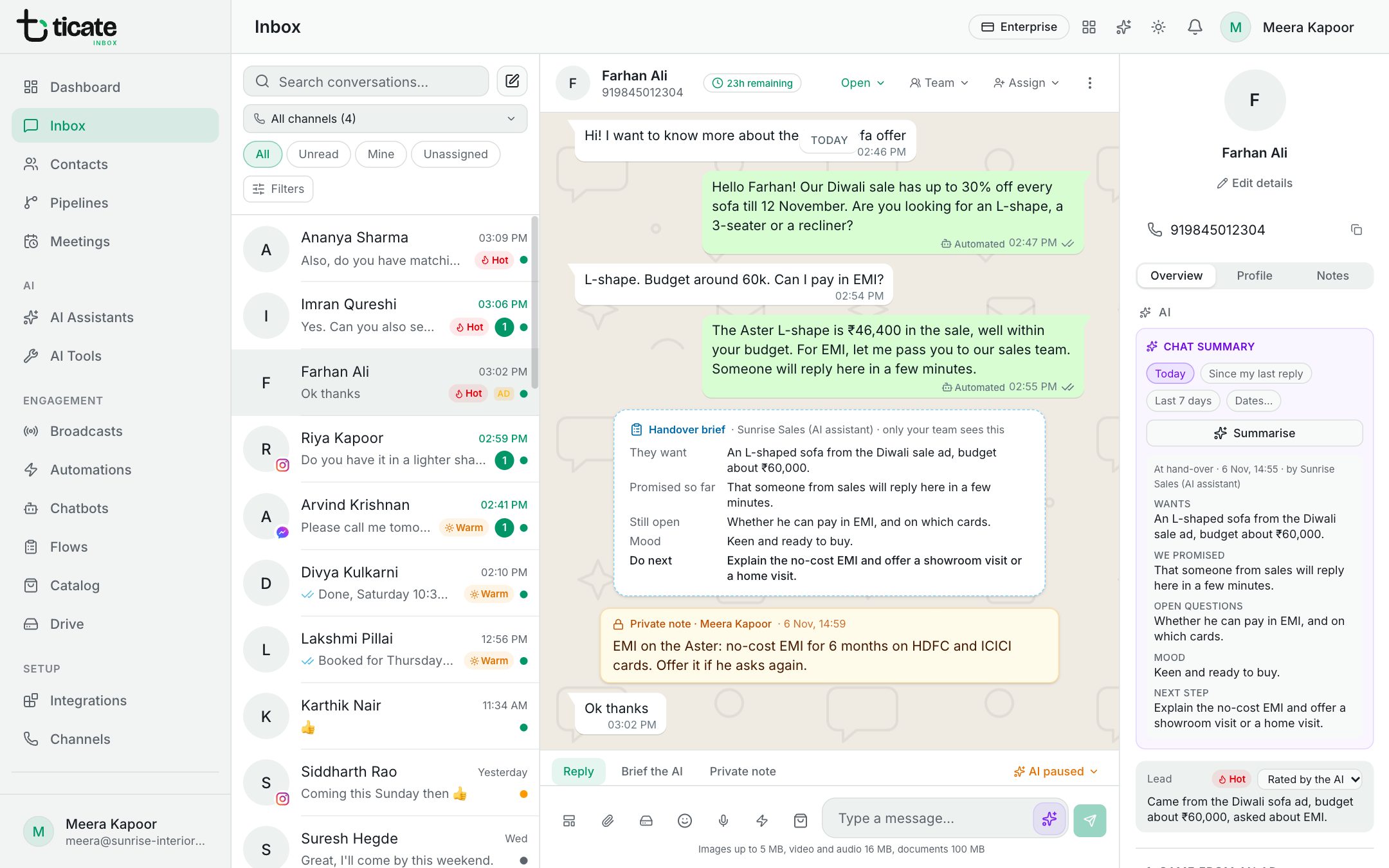
The AI section, at the top of the Overview tab in the panel beside a chat, is your AI working for your team rather than for the customer. Nothing in it is ever sent to the customer.
On a smaller screen, open the panel with the person button at the top of the chat (Contact details).
Summarise a chat
Picking up a long chat from a teammate? Click Summarise this chat and a short summary of the conversation appears in the panel. Click Summarise again after new messages arrive.
Summaries use the AI assistant that answers the chat's number. Without one, the app says so; see AI assistants. With Tic Buddy on, you can also choose the span (today, since your last reply, the last 7 days or dates) and the summary is saved on the chat for the team.
The handover brief
When the AI assistant hands a chat to a person, it leaves a Handover brief in the conversation at that point: what the customer wants, what was promised so far, what's still open, their mood, and what to do next. It is marked "only your team sees this" and is never sent to the customer, so whoever picks up the chat knows where it stands without scrolling back.
Hot, warm or cold
When an assistant has Rate leads hot, warm or cold switched on, it rates each chat a few minutes after the customer's messages go quiet:
- Hot, Warm or Cold shows beside the chat in the list and under Lead in the AI section.
- Under the rating, one line says why, such as "Asked for a quote and a delivery date for this week."
You know the customer better? Choose Hot, Warm or Cold from the list beside Lead. It shows "Set by" with your name, and the AI no longer changes that chat's rating. Choose Let the AI rate it to hand it back.
To see only your hottest chats, click Filters above the chat list and choose Hot under Lead (AI).
The setting is on the assistant; see What the assistant remembers.
Brief the AI for one chat
Above the message box, click Brief the AI. Type anything the assistant should keep in mind when it replies to this customer, and click Save brief. For example: "Offer 10% off the corner sofa; do not promise delivery before Monday."
It applies to this chat only. A dot on the tab shows a brief is set, and the brief also shows in the AI section of the panel. To remove it, clear the box and click Remove brief.
Beside the tabs, the AI button shows whether the assistant is answering this chat, and pauses or switches it back on. See Pause or switch off the AI in one chat.
What the assistant remembers
When the assistant has kept notes about a returning customer, they show under AI memory, with who wrote them and when.
- Click the pencil to correct or add to them, then Save.
- Click the bin to clear them. The assistant starts again from the customer's next chat.