

Import contacts from a CSV file
Bring a customer list in from a spreadsheet, match its columns to contact fields, and see what was imported and what was skipped.
If your customers are in a spreadsheet, another app or an old phone export, import them in one go. Any spreadsheet can be saved as a CSV file: in Excel or Google Sheets, choose to download or save as CSV.
Import a file
- In Contacts, click Import.
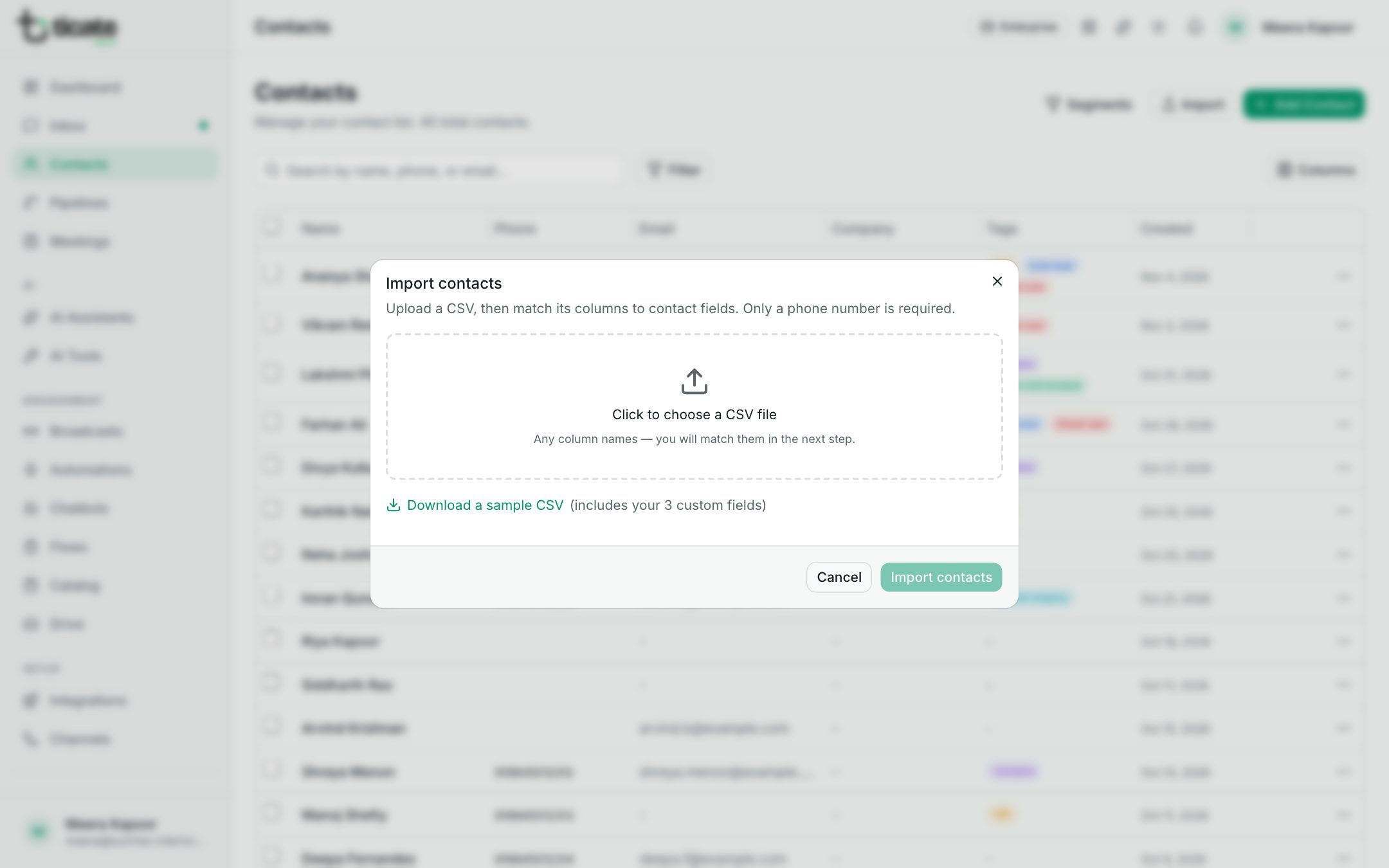
- Click Click to choose a CSV file and pick your file. Its columns can have any names.
- For each column of your file, choose where it goes: Phone (required), Name, Email, Company, one of your custom fields, or Don't import. The app makes a first guess from the column names; check it. The first row of your file is shown beside each column, so you can see what is in it.
- If you have more than one WhatsApp number, choose which one the contacts belong to.
- Click Import with the number of contacts.
When it finishes, the app says how many contacts were imported and how many rows were skipped.
What gets skipped
- Rows with no phone number.
- Numbers that are already in your contacts. Those contacts are left exactly as they were: an import never overwrites anyone.
Up to 5,000 rows can be imported at a time. Split a bigger file into parts.
Get the file right
- Put every number in one column, with its country code, such as 919876543210 or +91 98765 43210.
- One customer per row.
- Not sure of the layout? Click Download a sample CSV. It includes a column for each of your custom fields.
After an import, tag the new contacts so you can find them again; see Tag, update or delete many contacts at once.