

Where to start
What the shared social inbox does, and the order to set it up so your team can answer customers the same day.
TicAte brings your WhatsApp, Instagram and Messenger chats into one inbox your whole team shares. Customers write to your business number or your page, and anyone on your team can pick the chat up, reply, leave a note for a colleague or hand it to someone else. On top of that you can send broadcasts, track deals, book meetings and let an AI assistant answer the routine questions.
This page gives you the order to set things up in.
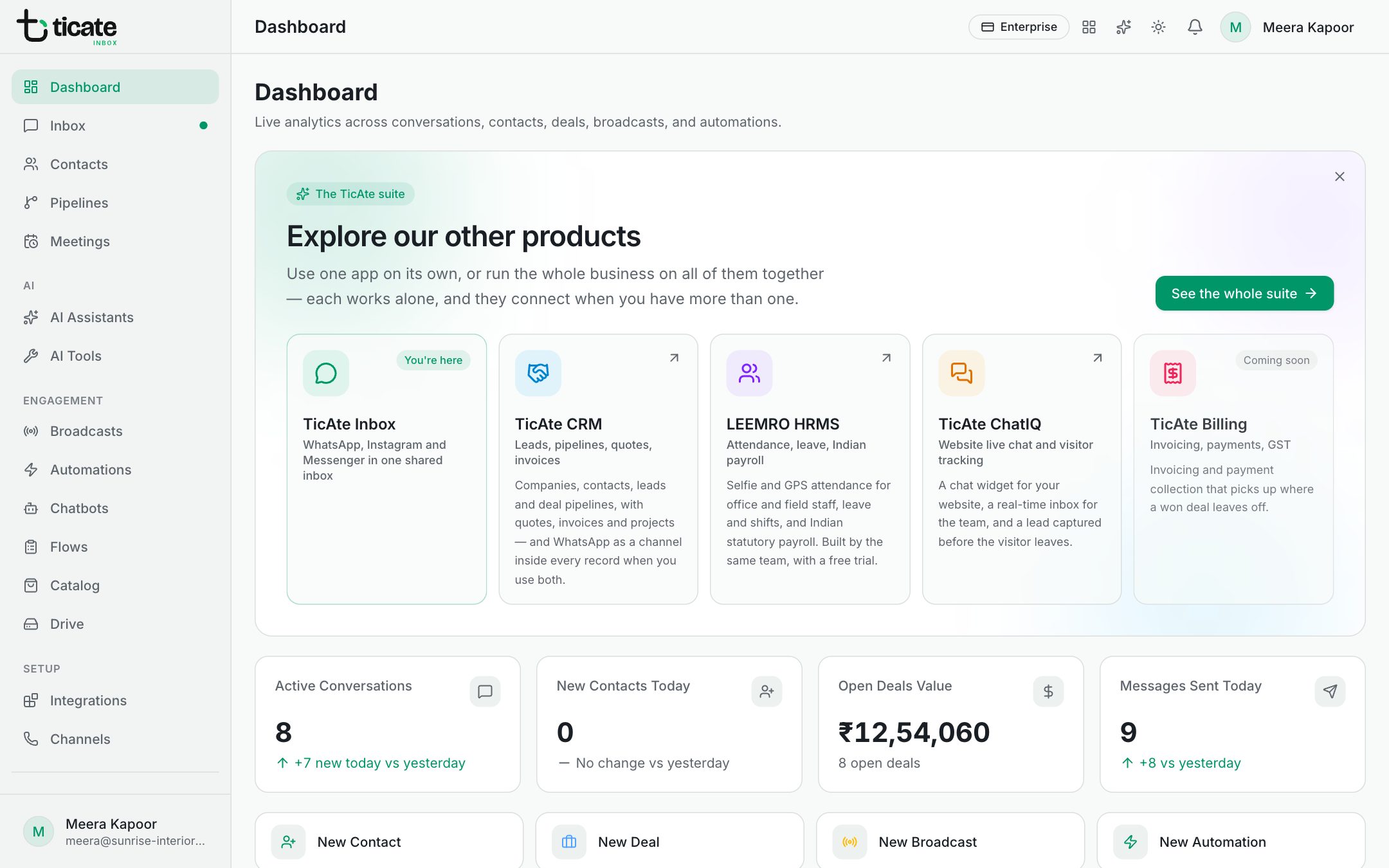
Sign in
Open app.ticate.com and choose Continue with TicAte. One TicAte account opens every TicAte app you use. See Sign in with your TicAte account.
After signing in you land on the Dashboard: today's numbers, a chart of your conversations and what happened most recently. See The dashboard.
Set up in four steps
- Connect your WhatsApp number. Open Channels in the menu and connect your WhatsApp Business number. You can add Instagram and Facebook pages from the same page. Until a number is connected, nothing arrives in the inbox. See Connect your WhatsApp number.
- Invite your team. Open Settings, click the Team tab and send each person an invitation. Give agents the numbers they work on. See Invite your team and choose roles.
- Reply to customers. Open Inbox, pick a chat and type your answer. Add your common answers as quick replies so nobody types them twice. See Inbox and Quick replies.
- Add AI. Open AI Assistants and create an assistant that answers on your number and hands the chat to your team when a person is needed. See AI assistants.
Before you message anyone first
WhatsApp has rules about when you can send a normal message and when you need a template that Meta has approved. Read WhatsApp rules you should know before you start a chat or send a broadcast.
Then learn the rest
- Find your way around: what each part of the menu is for.
- Contacts: your customers, their tags and their consent to marketing.
- Broadcasts: one message to many customers at once.