

Deals
Add a deal for a customer you are chatting with, move it through the stages, mark it won or lost, and see it beside their chat.
A deal is one sale you are working on: "Corner sofa for Meera, ₹85,000". It belongs to a customer, so it shows beside every chat with them, and to a stage of a pipeline, so your team sees how close it is.
Add a deal
- Go to Pipelines and choose the pipeline.
- Click Add Deal at the top, or Add Deal at the bottom of the stage it should start in.
- Give it a Title.
- Under Contact, search for the customer by name, phone or email.
- Add the Value and Currency, and an Expected Close Date if you have one.
- Check the Stage, choose who it is Assigned To, and add Notes if you like.
- Click Create Deal.
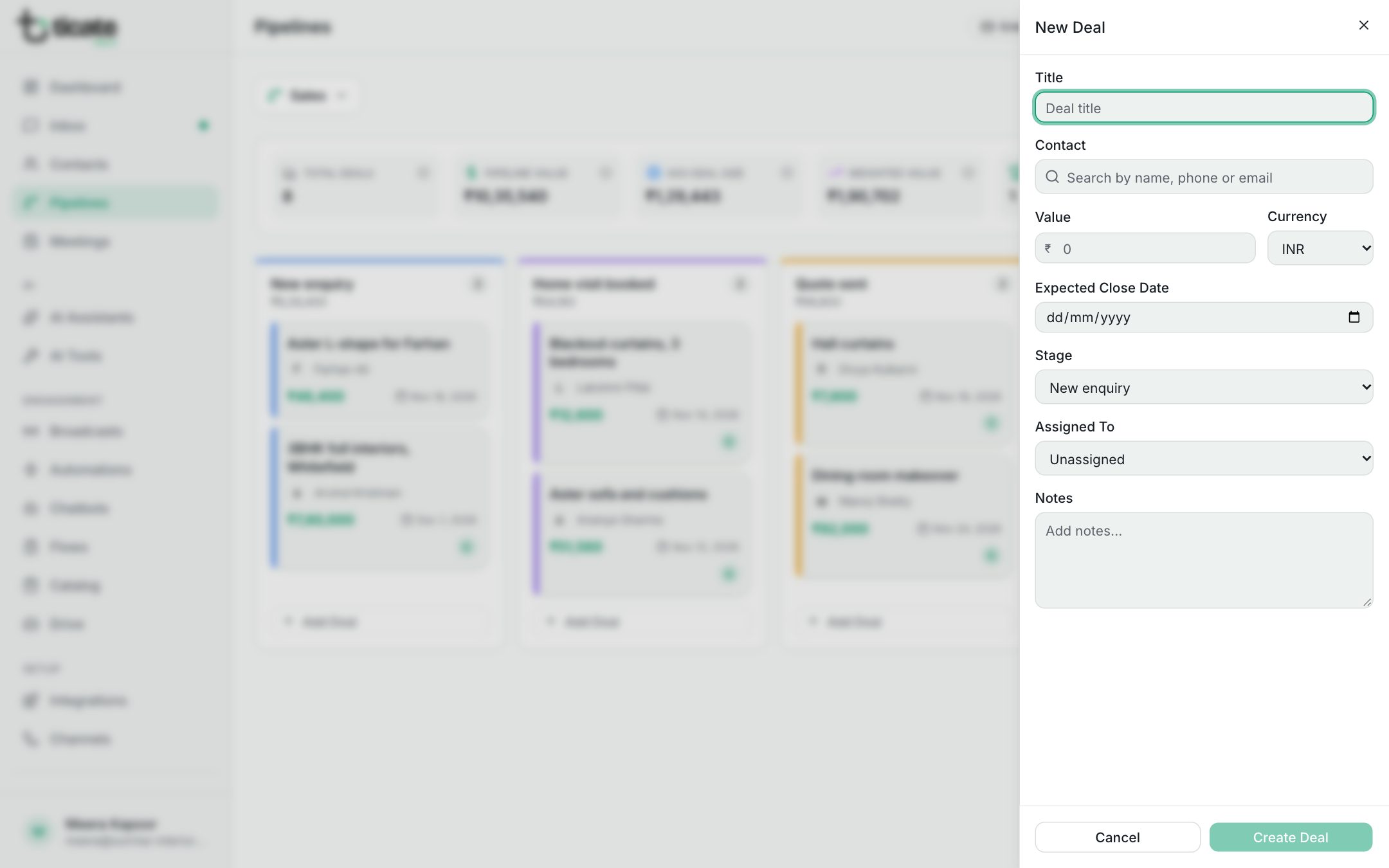
Title, contact and stage are required.
From a chat to a deal
While you chat with a customer, the Active Deals section in the panel beside the chat lists their deals, with each one's value and stage. When a chat turns into a sale, add the deal in Pipelines for that customer. From then on it shows beside every chat with them.
To create deals without lifting a finger, an automation can do it, for example when a customer sends a particular keyword: use the Create Deal step. See Automations.
Move a deal along
Drag its card to the next column on the board. Or open the deal and change its Stage.
Mark a deal won or lost
- Click the deal's card to open it.
- Under Status, click Mark as Won or Mark as Lost.
The card then carries Won or Lost, and it counts in Won This Month or Lost This Month above the board. Changed your mind? Open it and click Reopen deal.
Change or delete a deal
Click the card, change what you need and click Save Changes. To delete it, click Delete Deal and then Confirm.