

Send files from Drive
Attach a file from your workspace's Drive in any chat, or use it as a broadcast's header, a quick reply's attachment or an automation's file.
Once a file is in Drive, anyone on your team can send it in a chat with two clicks. Nothing is uploaded again, so it goes out quickly even on a slow connection.
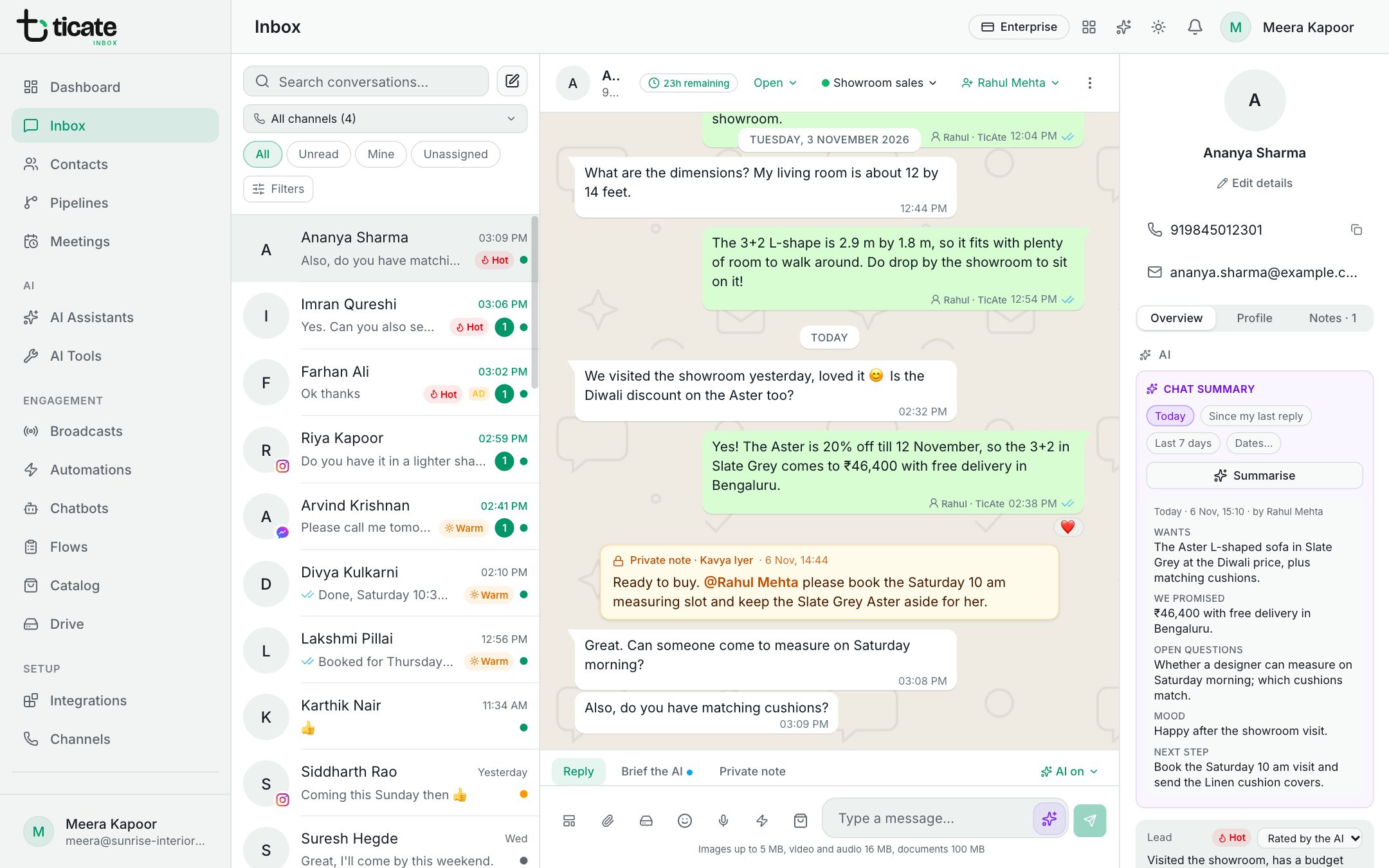
Attach a file in a chat
- Open the chat in the Inbox.
- Click the Drive button beside the paperclip (Attach from Drive).
- Find the file: open its folder, type in Search the whole Drive, or narrow the list to pictures, videos, audio or documents.
- Click the file, or several files, then click Use file (or Use 2 files, and so on).
- Add a caption if you like, and send.
You can attach up to 10 files at a time, from the Drive and your computer together. WhatsApp carries one file per message, so several files go as several messages; any text you type becomes the caption of the first.
If the Drive is empty, the picker says so. Add files under Drive in the left menu first.
Other places that use Drive files
- Broadcasts: for a template with a picture, video or document header, click Choose from Drive to send everyone that file instead of the one the template was approved with. Use the template's sample puts the original back.
- Quick replies: add files from the Drive to a saved reply, so they come along whenever someone uses it.
- Automations and chatbots: a step that sends a file can take it from the Drive.