

Teach the assistant about your business
Write the instructions that tell the assistant who it is, and give it your prices, hours and policies as business knowledge, in sections it reads only when needed.
An assistant knows only what you tell it. Two boxes on the AI configuration tab do that: Instructions say who it is and how it should behave, and Business knowledge holds the facts it may use. It never makes up prices, dates or policies; what isn't there, it hands to a colleague.
Write the instructions
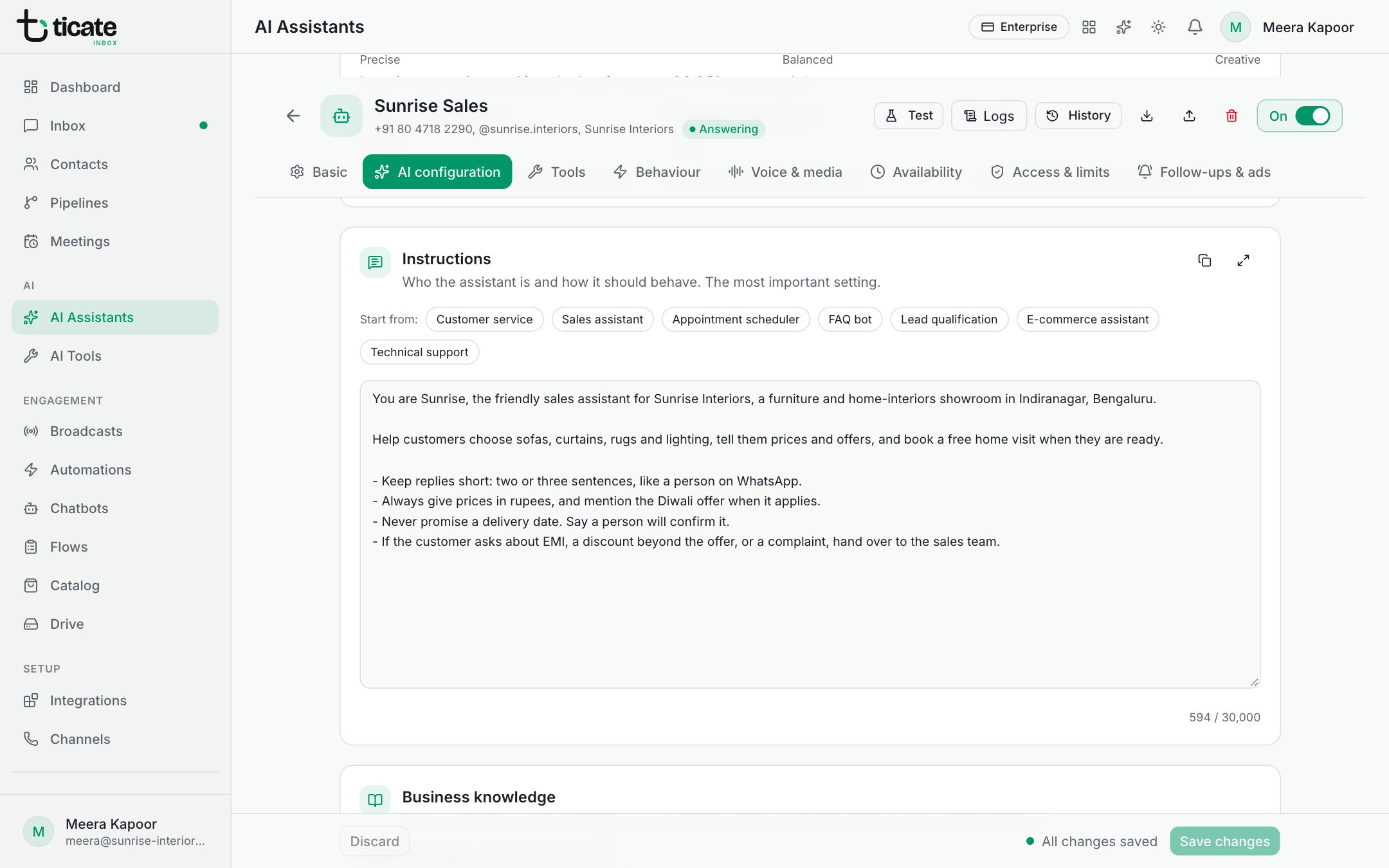
The instructions came from the starting point you picked. Read them and replace every part in square brackets, such as [Business name] or [hours], with your own words. Until you do, the yellow Before switching it on box lists the blanks left.
- Say what the business does and who the customers are.
- Say what the assistant's job is: answer questions, take bookings, find out the budget.
- Say what it should never do, such as offer discounts.
To start again from another template, click one beside Start from:. It replaces what is there, after asking. The buttons at the top right copy the text or open it full screen.
Add your business knowledge
Under Main knowledge — read on every reply, put what almost every chat needs: opening hours, address, delivery areas, how to pay. Write plainly, one fact per line, for example "Delivery: 2 to 4 days, free above ₹999".
Put long information in sections
Long price lists and FAQs belong in sections. The assistant sees only their headings on every reply, and opens a section when the customer's question needs it, so you pay for that text only on the replies that use it.
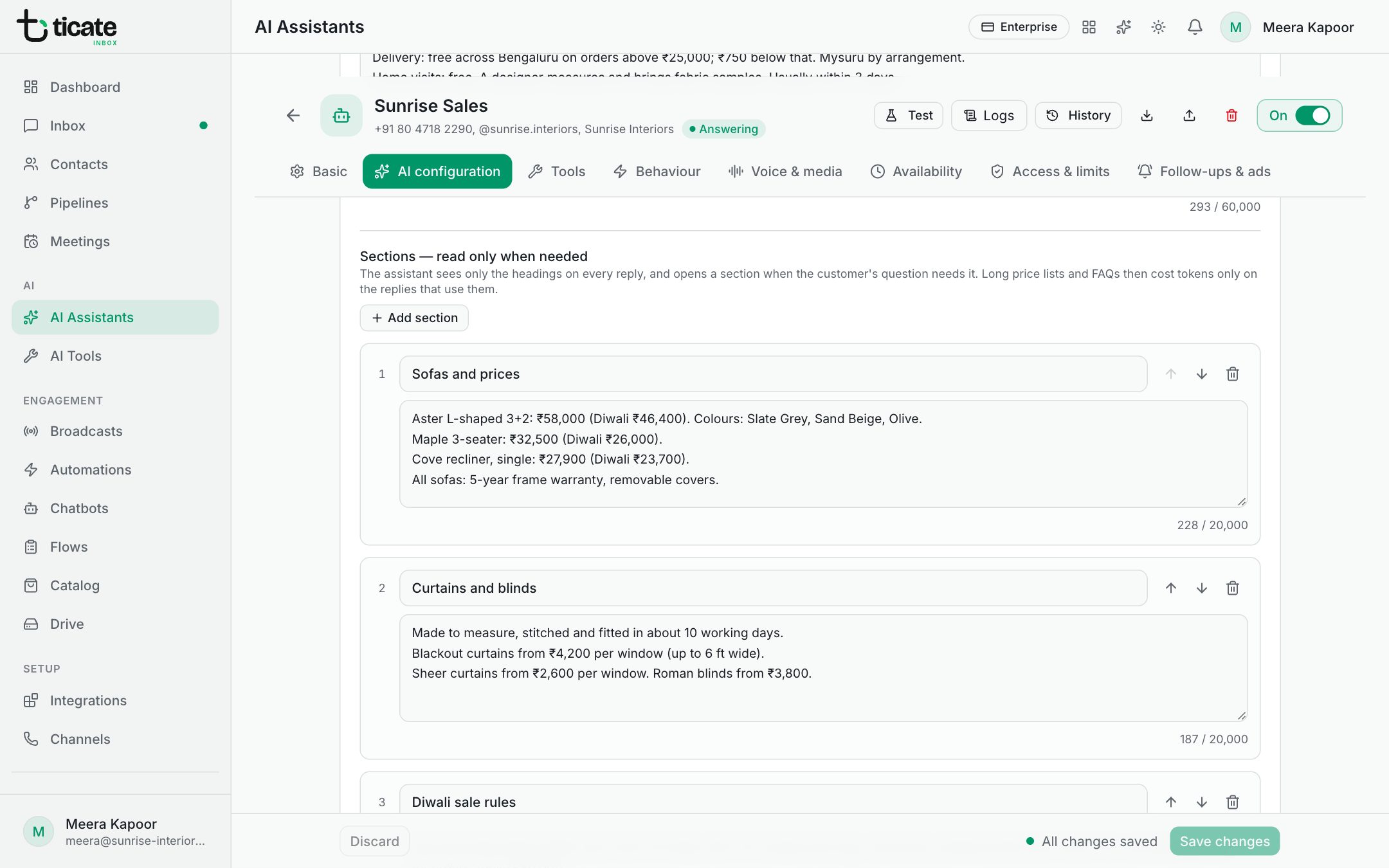
- Under Sections — read only when needed, click Add a section, like Pricing or Delivery & returns (or Add section once there is one).
- Type a heading, such as "Pricing", and the text under it.
- In the main knowledge, say when to use each one: "For prices or offers, read Pricing."
- Click Save changes.
Use the arrows to reorder sections and the bin to remove one. Below the list, the page says how much knowledge every reply reads and how much waits in sections.
If you paste knowledge with headings (lines starting with #), the page offers Split into sections to turn each heading into a section for you.