

Pipelines and stages
Track the sales that start in your chats on a board of stages, create more pipelines, and rename, reorder or recolour the stages.
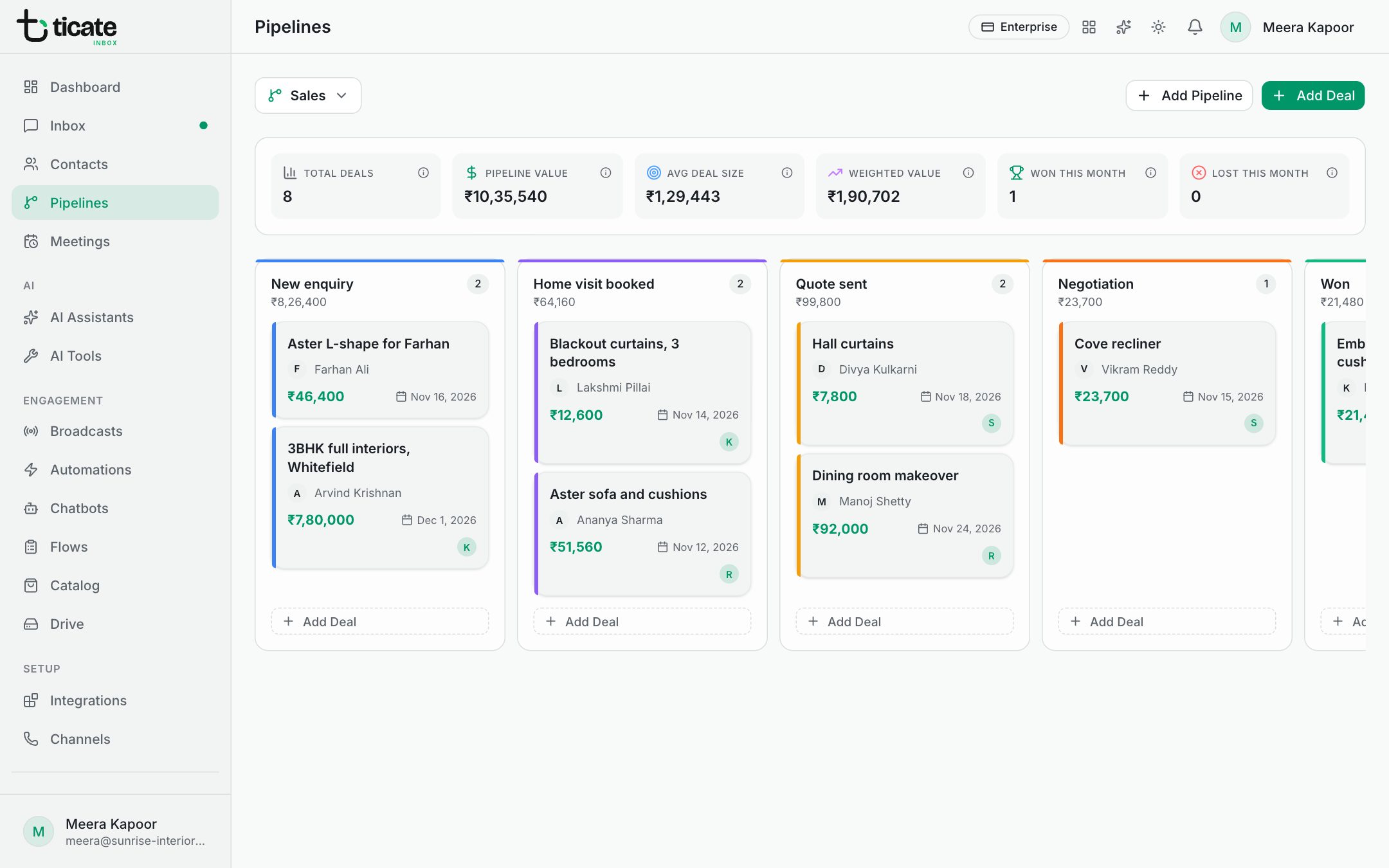
A pipeline is the road a sale takes, from first enquiry to won. It shows as a board: one column per stage, with a card for each deal. When a chat turns into a real opportunity, add a deal and move it along as the customer gets closer to buying.
Your first pipeline
The first time you open Pipelines, the app makes a Sales Pipeline for you, with five stages: New Lead, Qualified, Proposal Sent, Negotiation and Won. Use it as it is, or change it to fit how you sell.
The board
- Each column is a stage, with its colour along the top and the number of deals in it.
- Each card is a deal: its title, the customer, its value, the expected close date and who is looking after it. Deals marked won or lost carry Won or Lost.
- Drag a card to another column to move the deal to that stage.
Above the board, a row of figures sums the pipeline up: Total Deals, Pipeline Value, Avg Deal Size, Weighted Value, Won This Month and Lost This Month. Hover over the small icon beside each one to see how it is worked out.
Switch between pipelines
Click the pipeline's name at the top left and choose another. To make a new one, click Add Pipeline, give it a Pipeline Name and click Create Pipeline. It starts with the same five stages.
Change the stages
Pipelines are shared by the whole workspace, so only the owner and admins (and anyone else who sees every number) can change them.
- Click the pipeline's name, then Manage Pipelines.
- Change the Pipeline Name if you like.
- Under Stages, rename a stage, drag it up or down to reorder, or click its colour to change it.
- To add a stage, type a New stage name, pick a colour and click Add.
- Click Save Changes.
A stage that still has deals in it cannot be deleted: move or delete those deals first.
Delete a pipeline
In Manage Pipelines, click Delete Pipeline and confirm. Its deals go with it, and it cannot be undone.
Next: Deals.