

Group people into teams
Make teams such as Sales or Support, so a chat can go to a whole group and the inbox can be filtered by team.
A team is a group of people, such as Sales, Support or Accounts. Once you have teams, you can hand a chat to a whole team instead of, or as well as, one person, and filter the inbox to see one team's chats.
Creating, changing and deleting teams needs the owner or admin role. Everyone can see the teams.
Create a team
- Open Settings and click the Team tab.
- Under Teams, click New team.
- Type a Name, for example "Sales".
- Pick a Colour. It is the dot shown beside the team's name in the inbox.
- Under Members, click each person who belongs to it.
- Click Save team.
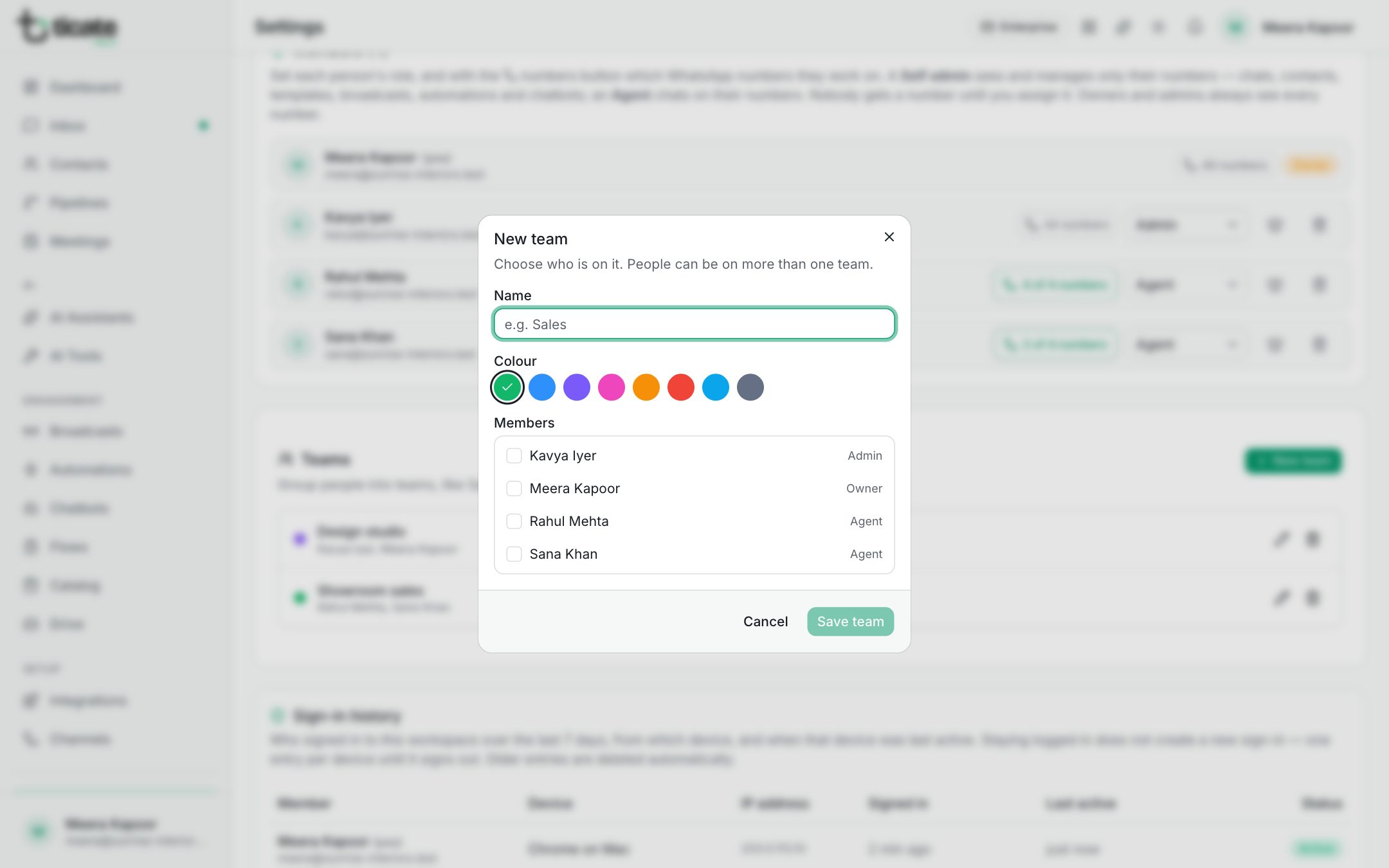
People can be on more than one team. A team with nobody in it yet shows No members yet.
Change or delete a team
Click the pencil beside a team to rename it, change its colour or add and remove people, then click Save team.
Click the bin beside a team and confirm to delete it. Its chats keep the person they are assigned to.
Use teams in the inbox
Once at least one team exists, a team button appears at the top of each chat, so you can hand the chat to a team. The inbox filters let you show one team's chats. See Inbox.