

Connect Bitrix24
Make WhatsApp an Open Channel in your Bitrix24 portal, so agents reply from Bitrix24 and chats appear on CRM records.
If your team works in Bitrix24, WhatsApp can become one of its Open Channels. Agents reply from Bitrix24 Messenger, with files, pictures and voice notes, and the replies go out over WhatsApp. Customers are matched to CRM contacts by number, or added, and the chats appear on the lead or deal timeline.
Setting it up needs the owner or admin role here, and administrator rights in Bitrix24.
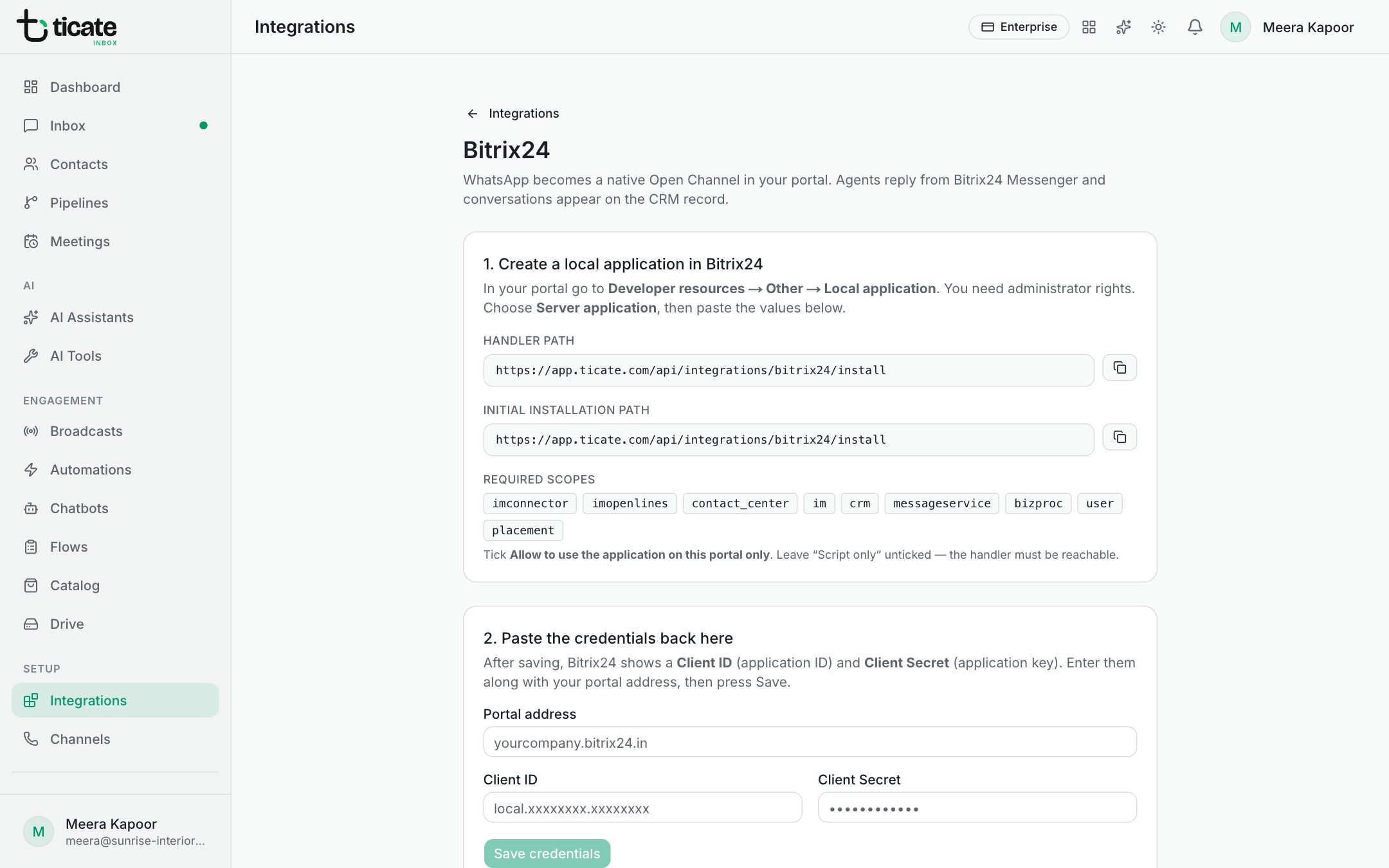
Connect
The Bitrix24 page (Integrations, then Set up on Bitrix24) walks you through three steps.
- Create a local application in Bitrix24. In your portal go to Developer resources → Other → Local application and choose Server application. Copy the Handler path and Initial installation path from TicAte into it, and tick every scope listed under Required scopes. Tick Allow to use the application on this portal only, and leave "Script only" unticked.
- Paste the credentials back here. Bitrix24 shows a Client ID and Client Secret. Enter them with your Portal address, such as yourcompany.bitrix24.in, and click Save credentials.
- Install the application. Back in Bitrix24, open the local application and press Install. TicAte then registers WhatsApp and creates its Open Channel. Assign agents under Contact Center → Open Channels.
What is switched on
Once connected, the page lists:
- Open Channel messaging: WhatsApp in Contact Center, answered from Bitrix24 Messenger.
- Message tab on CRM records: a WhatsApp option in the Message tab of deals, leads, contacts and companies.
- Automation rules: "Send WhatsApp message" and "Send WhatsApp template" rules. Templates use the same block as TicAte CRM; see Send WhatsApp templates from TicAte CRM.
Anything shown as off is almost always a missing scope: add it in Bitrix24, then press Reinstall there.
More settings
- Open Channel for each number: click Load numbers and channels and give each number its own Open Channel, so Sales and Support keep separate queues and working hours.
- Ad attribution: for chats that start from a Click-to-WhatsApp ad, choose which lead and deal fields receive the ad's details. Bitrix24's own UTM fields are the default.
- Inbox inside Bitrix24: opening TicAte from the Bitrix24 menu shows each person the chats on records they are responsible for or observing. Click Load portal users and grant Sees everything to those who should see every chat.
When something does not work
- Run diagnostics reads the live state from your portal and shows which part is missing.
- Repair connection sets up the connector, message provider and automation rules again. It is safe to run repeatedly.
- Open a test chat checks that replies from Bitrix24 reach WhatsApp: enter a number you can watch, then reply in Bitrix24 Messenger.
- Still stuck? Write to support@ticate.com.
Disconnect and forget credentials stops chats and leads syncing with the portal until you connect it again.