

Draft or improve a reply
Let Tic Buddy draft your next reply from your AI assistant's instructions and knowledge, or make your own reply shorter, more formal or friendlier.
Tic Buddy can write a first draft for you, or polish what you typed. You always read it first and decide whether to send it. An owner or admin has to turn it on first.
Draft a reply
- Open the chat, leave the message box empty, and click the Tic Buddy button (the sparkles) inside it, next to Send.
- Click Draft a reply.
- A card above the box shows the draft.
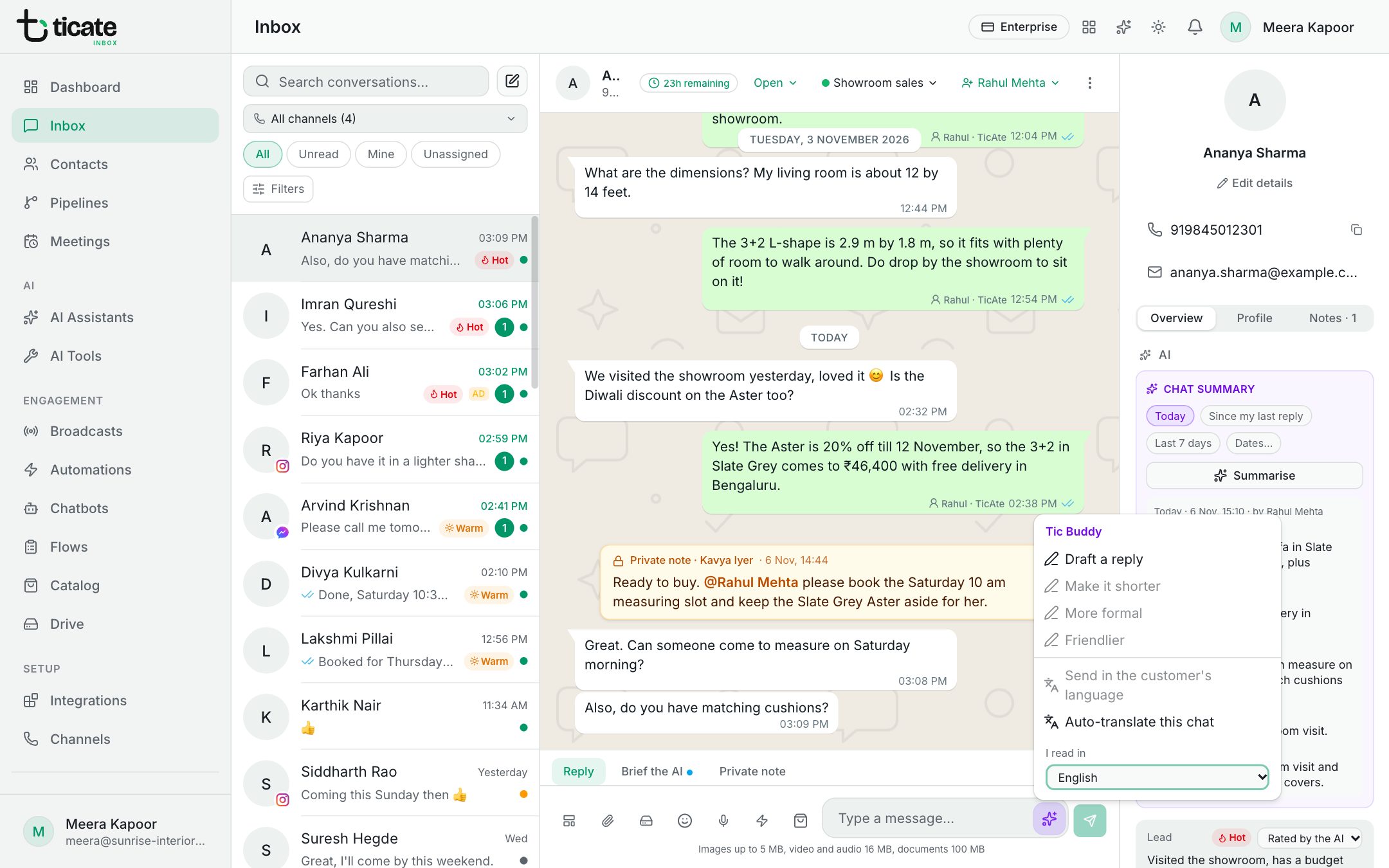
Tic Buddy reads the recent chat and, when the chat's number has an AI assistant, that assistant's instructions and business knowledge. It writes in the customer's language, keeps the message short, and puts key facts in bold. It never makes up prices or promises: when something isn't known, the draft says you will check.
Improve your own reply
Type your reply, open the Tic Buddy button and choose:
- Improve my reply: a clearer, better answer to the customer's latest message.
- Make it shorter
- More formal
- Friendlier
Each keeps your facts, prices and promises.
Use the draft
On the card:
- Shorter, More formal or Friendlier rewrites the draft again.
- Edit in the box puts it in the message box, ready to change.
- Send sends it as it is.
- The cross closes it without sending.