

Set up your catalog
Create a WhatsApp catalog or connect one you already have, bring in your products, and choose which ones your team can send.
The catalog is what you sell, ready to send in a chat. Products you add in TicAte are listed on your WhatsApp catalog too, so customers can browse them, build a cart in WhatsApp and send it to you as an order.
Open Catalog under Engagement in the left menu. Creating, connecting and changing the catalog needs the owner or admin role.
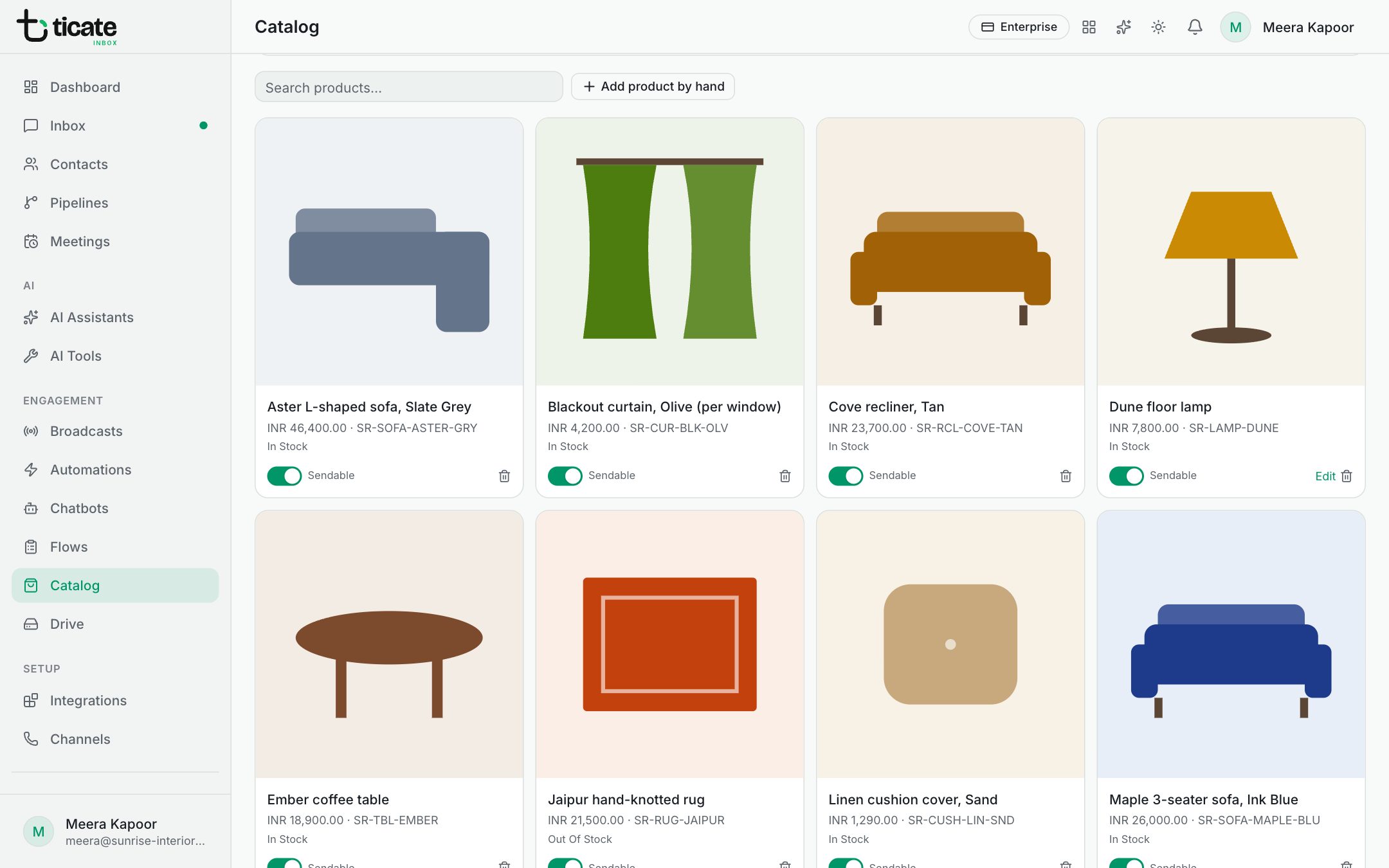
Create a catalog or connect one
- Click Create or connect catalog.
- Choose Create new to make a fresh catalog, or Connect existing for one you already keep in Meta Commerce Manager.
- Pick the WhatsApp Business Account it belongs to.
- For a new catalog, type a Catalog name, such as "Main store", and click Create catalog. It is made on Meta under your business and attached to your WhatsApp number.
- For an existing catalog, click Look up catalogs on this account and pick it from the list, or paste its Catalog id from Commerce Manager. Then click Connect.
Each catalog appears as a card. Click Sync to bring in products added or changed in Commerce Manager.
Add a product by hand
- Click Add product by hand.
- Fill in the Retailer id (your own code for the item, unique in the catalog), Name, Price, Currency, Description, Image URL and, if you like, Product page URL. WhatsApp needs a name, a price and an image link.
- Click Save.
The product is saved in TicAte and listed on WhatsApp. If WhatsApp does not accept it yet, the card says "Not on WhatsApp yet" with the reason; fix the details and click Try again. Products you added by hand have an Edit link.
If you sell on Shopify or WooCommerce, connect the store instead and its products are listed for you. See Shopify and WooCommerce.
Choose what your team can send
Each product card has a Sendable switch. Turn it off to keep a product out of the list your team picks from in a chat, without removing it from the catalog. Type in Search products… to find one by name or retailer id.
The bin icon removes a product from TicAte. A product that came from Meta comes back on the next sync, so turn Sendable off instead if you only want to hide it.
To stop using a catalog, click the bin on its card. Its products are removed from TicAte; orders you already received are kept.