

Send products in a chat
Send one product, a list of products, or your whole catalog to a customer on WhatsApp, so they can add items to a cart and order.
When a customer asks what you have, send the products straight from the chat. They see each product with its picture and price, and can add items to a cart without leaving WhatsApp.
This works in WhatsApp chats. Instagram and Messenger chats do not have it. First set up your catalog.
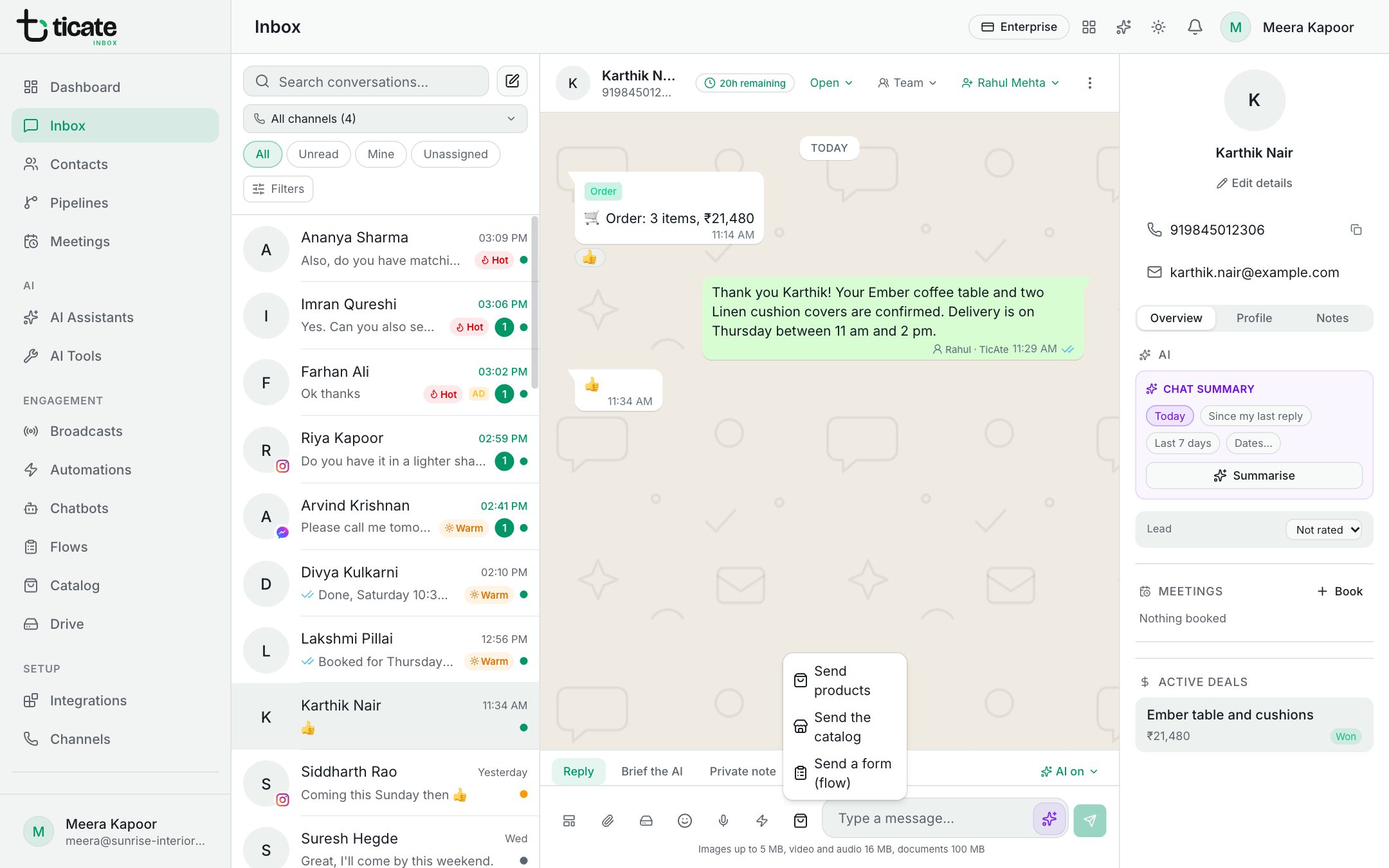
Send one or more products
- Open the chat in the Inbox.
- Click the shopping bag button beside the message box (Send products, your catalog, or a form).
- Choose Send products.
- Tick the products to send. Type in Search… to find one. You can pick up to 30.
- If you like, add a short message to show with them.
- Click Send.
One product arrives as a single card with its image and price. Several arrive as a list the customer can open, pick from and add to a cart.
Only products with Sendable switched on in Catalog appear in the list. If the list is empty, it says so: connect a catalog under Catalog first.
Send the whole catalog
- Click the shopping bag button and choose Send the catalog.
- Type a message, or leave the suggested one: "Browse our catalog and add what you like to your cart."
- Click Send.
The customer gets a View catalog button that opens everything you sell.
When the customer orders
When the customer sends their cart, it arrives in the chat as an order, and also on the Orders tab of Catalog. See Orders from WhatsApp.