

Connect TicAte CRM
Put this inbox inside TicAte CRM, so each person sees and answers the WhatsApp chats on their own leads, deals and contacts.
With TicAte CRM connected, your sales team works WhatsApp from the CRM. A WhatsApp menu there opens this inbox, and a WhatsApp tab on every deal, lead, contact, company and module record shows that customer's chat, or starts one. It is the same inbox: a reply from the CRM is a reply here too.
Setting it up needs the owner or admin role here, and an admin in the CRM.
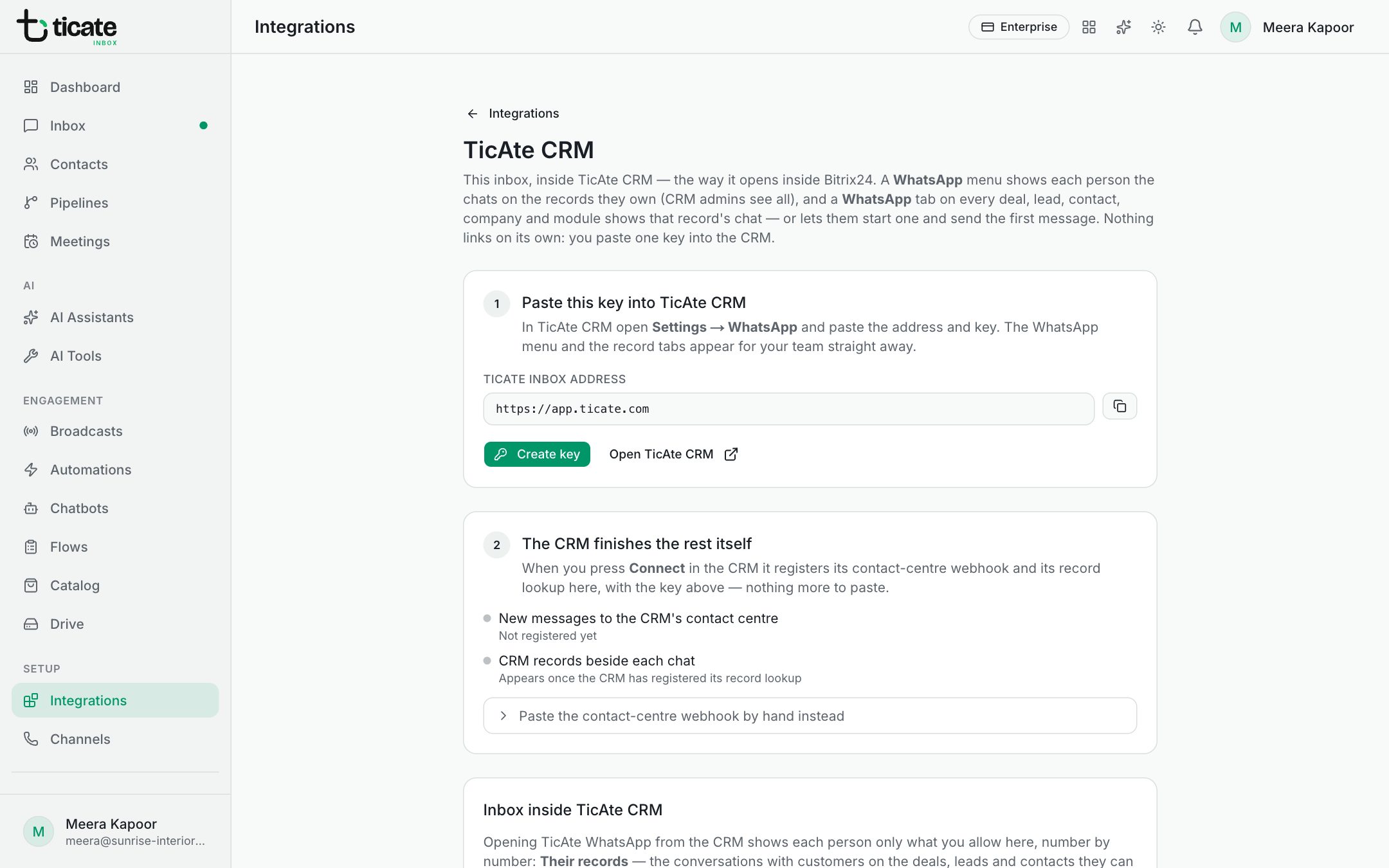
Connect
- Open Integrations in the left menu and click Set up on TicAte CRM.
- Under Paste this key into TicAte CRM, click Create key. Copy the key straight away: it is shown once.
- Copy the TicAte Inbox address as well.
- Click Open TicAte CRM, go to Settings → WhatsApp, paste the address and the key, and press Connect there.
The CRM sets up the rest itself. Back on this page, the second step, The CRM finishes the rest itself, ticks off New messages to the CRM's contact centre and CRM records beside each chat once it has.
What you get
- Every message, from the customer or your team, reaches the CRM's contact centre, with delivery ticks.
- Each chat here shows the customer's CRM records, such as a lead or deal, in the chat list and the contact panel.
- Chats are matched to records by phone number, so keep CRM numbers with their country code.
Decide who sees what
CRM users do not sign in to this app; they work in the CRM only. Under Inbox inside TicAte CRM, each person who has opened WhatsApp from the CRM is listed. For each number choose No access, Their records (the chats on the records they can open in the CRM) or Everything. Until you choose, they see nothing.
More settings once connected
- Bring in CRM users: makes CRM users available for hand-overs in the inbox and from AI assistants. A chat handed to a CRM user makes them the owner of that customer in the CRM.
- CRM open channel for each number: click Load numbers and open channels and send each number to its own open channel in the CRM, say domestic sales to one team and international to another.
- AI assistants can answer or follow up by the stage of the customer's lead or deal in the CRM.
To send approved templates from the CRM, see Send WhatsApp templates from TicAte CRM.
Pause or disconnect
The switch on the TicAte CRM card under Integrations pauses the WhatsApp menu and tabs without losing the setup. Disconnect, at the bottom of the page, ends the connection and its key. Make a new key replaces the key; paste the new one into the CRM straight away.