

Create a message template
Write a template, choose its category and language, and submit it to Meta, or add a ready-made one from Meta's library.
You create templates on the page of the WhatsApp number that will send them. Owners, admins and self admins can create templates; everyone on the number can send them.
Write a new template
- Open Channels in the left menu and click Open on the number.
- Under Templates for the number, click New Template.
- Type a Template name, such as
order_update. Only lowercase letters, numbers and underscores; spaces become underscores. - Choose the Category: Marketing, Utility or Authentication. See What a message template is.
- Choose the Language the message is written in.
- Leave Format on Standard, unless you want one of the special formats below.
- Write the Body. Use
*bold*,_italic_and~strikethrough~as in WhatsApp. To add a customer's details, click Add variable, then give a sample under Sample values. - Add a Header, a Footer (optional) such as "Reply STOP to opt out", and Buttons (optional) if you like. See Variables, media headers and buttons.
- Check the Preview on the right, then click Submit for approval.
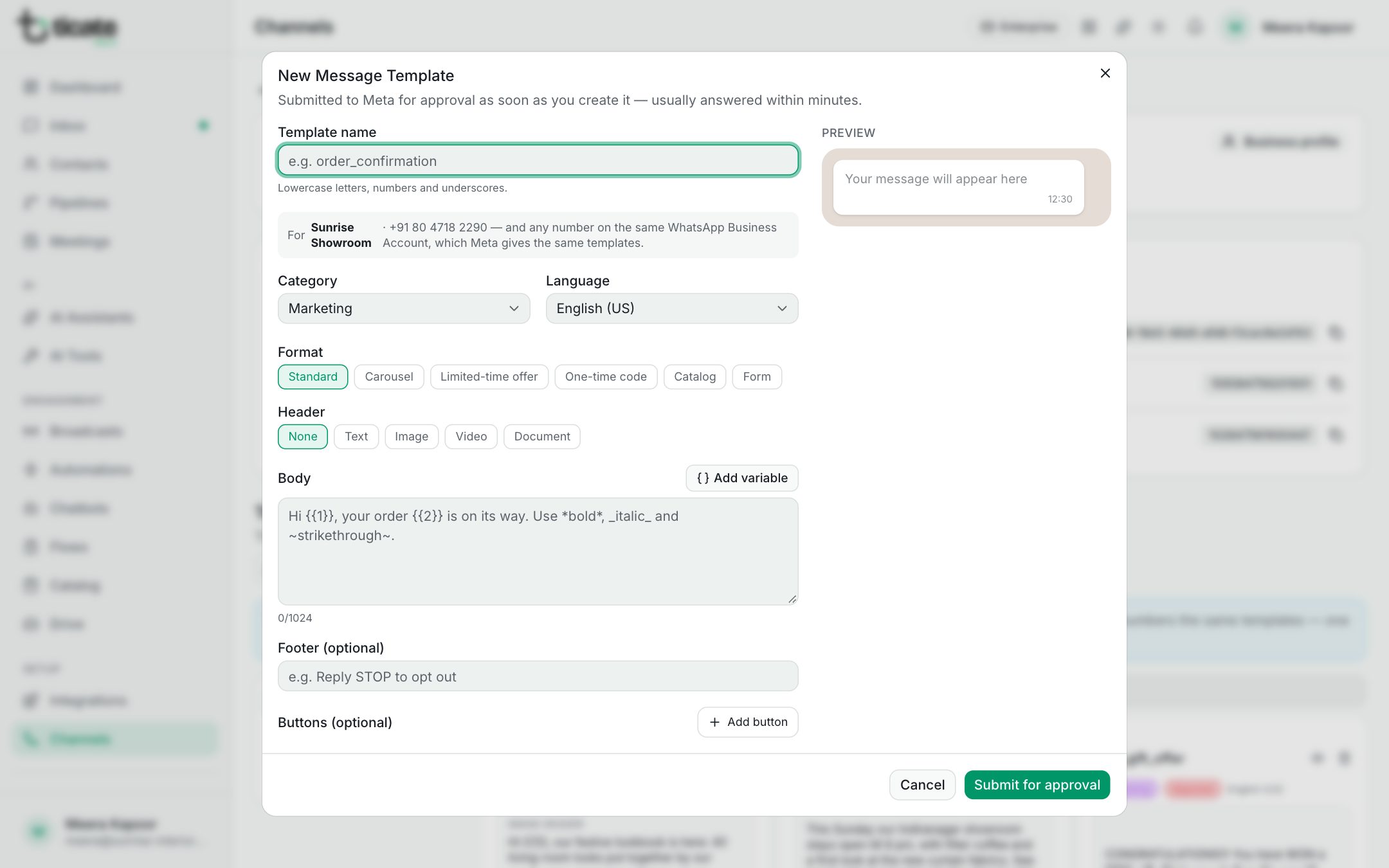
The template appears in the list as Pending. Meta usually answers within minutes, and the status changes to Approved or Rejected by itself. See Template review and statuses.
What you type is kept in this browser until you submit it, so a closed tab does not lose your work. Start over clears it.
Special formats
- Carousel: 2 to 10 swipeable cards, each with its own picture or video, text and buttons. Marketing only.
- Limited-time offer: an offer heading, an optional countdown and a code to copy. Marketing only, no footer.
- One-time code: a login or verification code. Meta writes the words; the customer copies the code with one tap.
- Catalog: opens your WhatsApp catalog, all of it or chosen products. Marketing only, and needs a catalog connected to the number.
- Form: a button that opens one of your Flows, so a form can go out after 24 hours or in a broadcast. Marketing or utility.
Start from Meta's library
For order, delivery, payment, appointment and account updates, Meta has ready-made templates that are approved the moment you add them.
- Click Template library.
- Search or browse, and click Use this template → on the one you want.
- Give it a Template name, and fill in your website or phone number if it has a link or call button.
- Click Add template.
Marketing templates are not in the library; write those with New Template.