

WhatsApp rules you should know
The 24-hour reply window, when you need an approved template, and what happens when a customer opts out.
WhatsApp is strict about business messages, and Meta enforces the rules on every message you send. Two of them shape how you work every day: the 24-hour window and opting out.
The 24-hour window
When a customer writes to you, a 24-hour window opens. Inside it you can send anything: free text, photos, files, voice notes and quick replies. Each new message from the customer starts the 24 hours again.
Once 24 hours pass without a message from the customer, the window closes. From then on you can only send a template: a message written in advance and approved by Meta. When the customer answers the template, the window opens again and you can chat normally.
The same applies when you write to someone first. If they have never messaged you, your first message has to be a template.
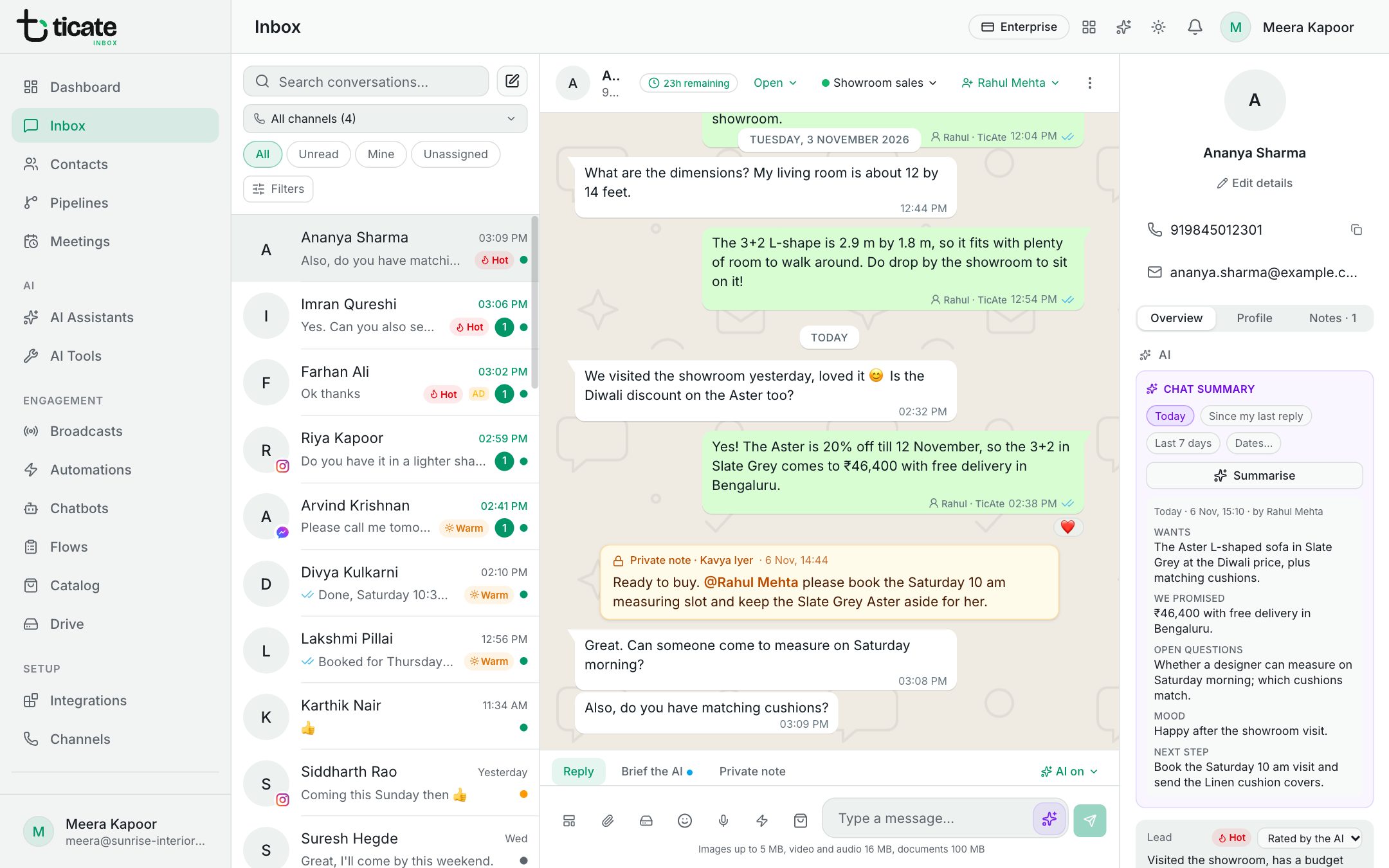
How the app shows it
- At the top of each WhatsApp chat, a small clock shows the time left, such as 5h remaining. When it has run out it says Expired, and on a chat where the customer has not written yet it says Start with a template.
- If you send a normal message after the window closed, WhatsApp refuses it. The message is marked as not sent, with Send a template instead under it.
- The Send template button in the message box opens your approved templates at any time.
Templates belong to each WhatsApp number and are approved by Meta before you can use them. See Message templates.
Opting out
Customers can tell you to stop sending them marketing. When a customer's reply is just one of these words, the app marks them as Opted out: "STOP", "Unsubscribe", "Opt out", "Stop promotions" or "Stop messages". A reply of "START" or "Subscribe" marks them as Opted in again. WhatsApp can also report that a customer stopped your marketing messages, and the app records that too.
Opted-out contacts are left out of every broadcast. When you prepare a broadcast, the app tells you how many people it is leaving out and why.
You can see and change a customer's choice under Marketing on their contact, or in the panel beside the chat: Opted in, Opted out or Not recorded. See Contacts.