

Orders from WhatsApp
See the carts customers send from WhatsApp, move each order from New to Confirmed, Fulfilled or Cancelled, and let the customer know on WhatsApp.
When a customer sends a cart from WhatsApp, it arrives as an order. You see it in the chat, marked Order, and on the Orders tab of Catalog, where your team keeps track of it until it is done.
You see the orders from the chats you can see.
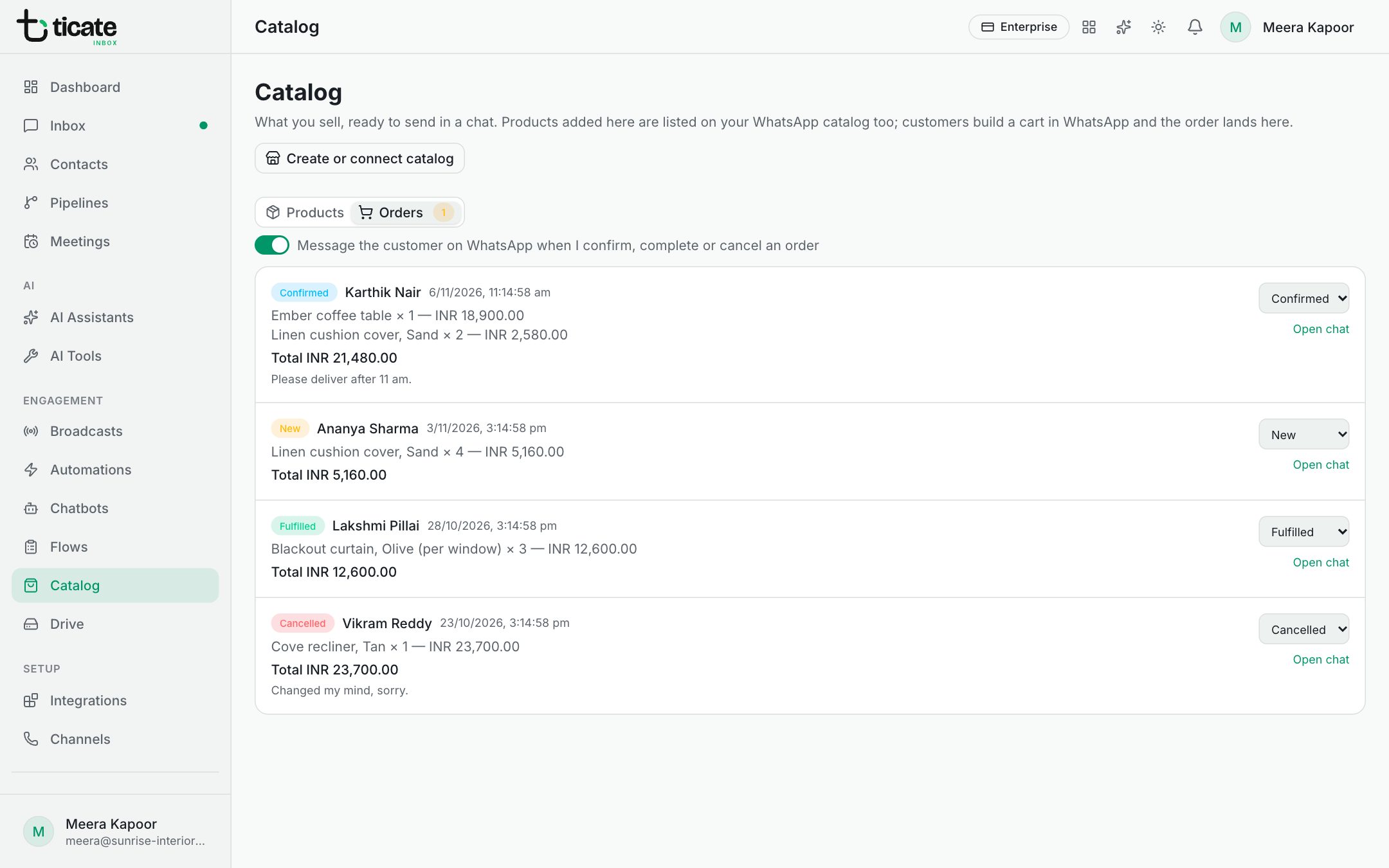
Find new orders
- Open Catalog in the left menu.
- Click the Orders tab. The number beside it is how many orders are still New.
Each order shows the customer, when it came in, every item with its quantity and price, the Total, and any note the customer added. Open chat takes you to the conversation.
Move an order along
Use the list on the right of each order to change its status:
- New: just arrived.
- Confirmed: you have accepted it.
- Fulfilled: the order is complete.
- Cancelled: it will not go ahead.
Tell the customer on WhatsApp
At the top of the tab is the switch Message the customer on WhatsApp when I confirm, complete or cancel an order. With it on, moving an order to Confirmed, Fulfilled or Cancelled sends the customer a short message in the chat, naming how many items the order has and its total. The switch is remembered on this browser.
After each change a note tells you what happened:
- The customer was told on WhatsApp.
- The customer last wrote over 24 hours ago, so WhatsApp will not take an ordinary message. Open the chat and send them a message template instead.
- The message did not go, with the reason.
Do something whenever an order comes in
An automation can start with Order Placed, for example to tag the customer, assign the chat to your sales team or send a thank-you message.