

Check who has signed in
See every sign-in to your workspace over the last 7 days, from which device, and whether it is still active.
If you ever wonder whether someone is using an account they should not, the sign-in history answers it. It lists who signed in to your workspace over the last 7 days, from which device, and when that device was last active.
Only owners and admins see it.
Open the sign-in history
- Open Settings and click the Team tab.
- Scroll down to Sign-in history.
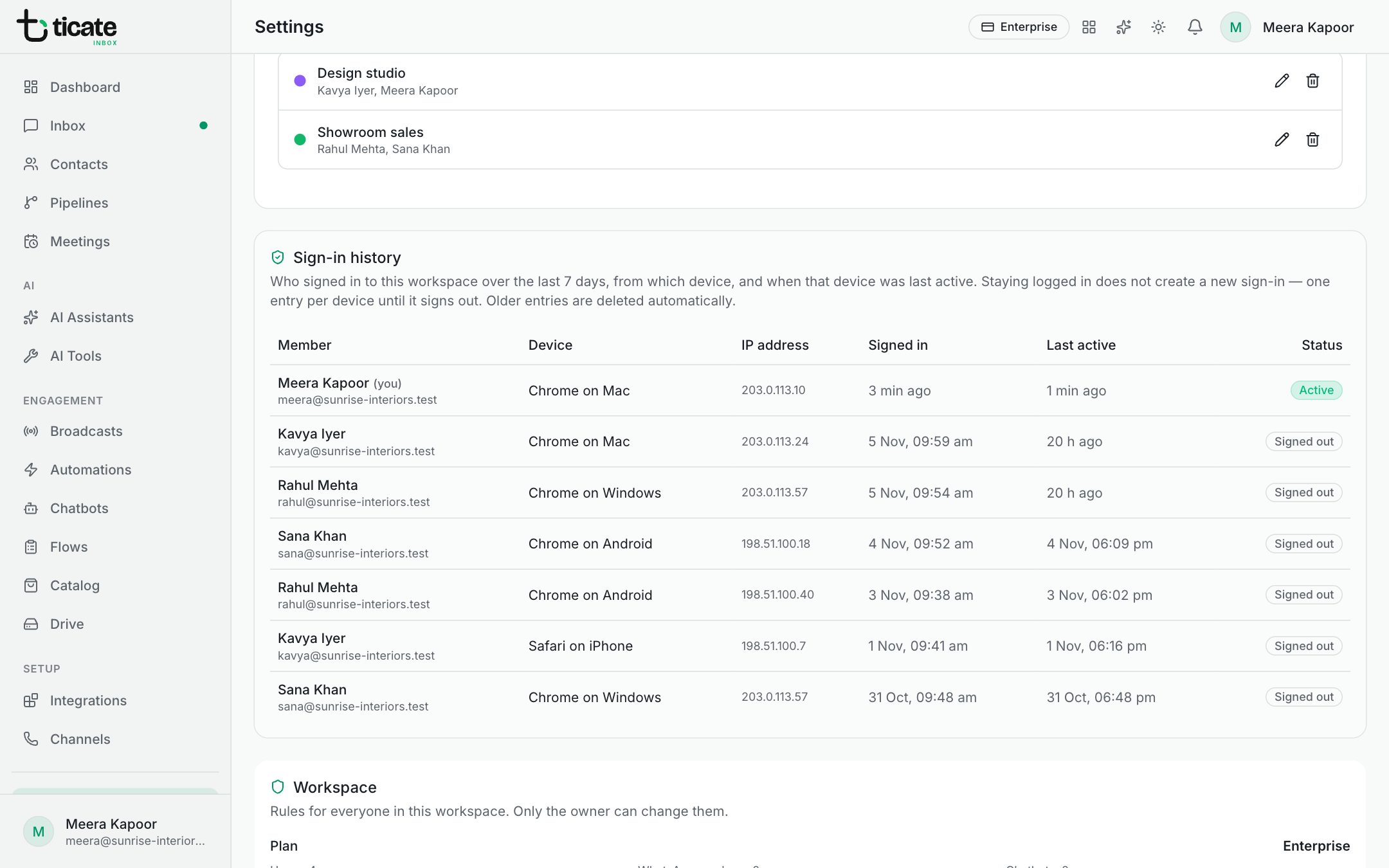
Each line shows:
- Member: who signed in. Your own sign-ins are marked (you).
- Device: the browser or phone they used.
- IP address: where the sign-in came from.
- Signed in and Last active: when they signed in, and when that device was last used.
- Status: Active while the device is still signed in, Signed out once it is not.
Staying signed in does not add a new line; only a fresh sign-in does.
If something looks wrong
- A device you do not recognise on your own account: open your profile and click Sign out of all devices, then change your TicAte password. See Your profile.
- Someone who has left the business: remove them from the workspace. See Invite your team and choose roles.