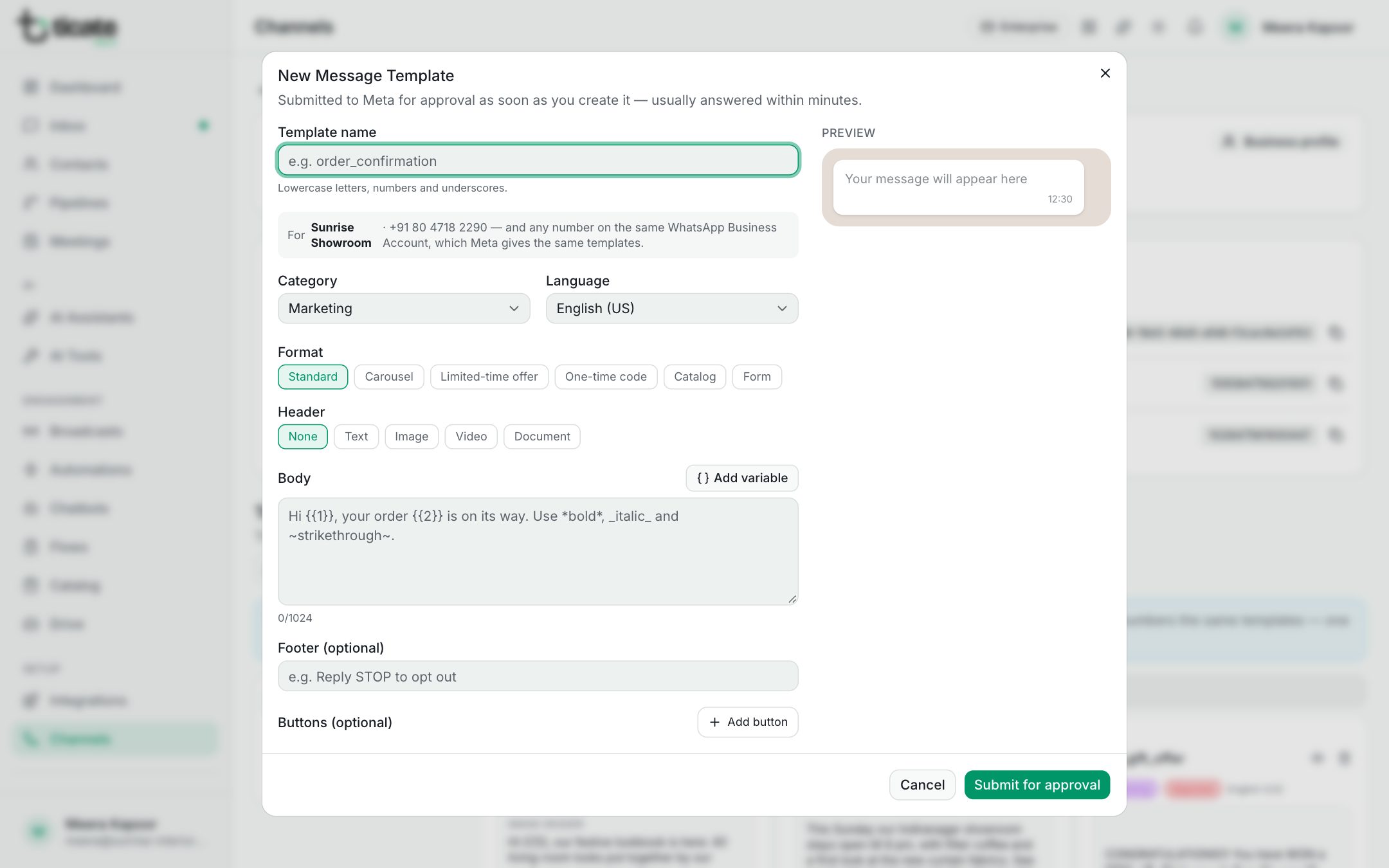
Variables, media headers and buttons
Put each customer's details into a template, add a picture, video or document at the top, and add tappable buttons.
A plain template says the same thing to everyone. Variables, a media header and buttons make it personal, eye-catching and easy to act on.
Variables
A variable is a blank filled in for each customer when the message is sent, such as their name or order number.
- In the Body, put the cursor where the blank goes and click Add variable. It inserts
{{1}}, then{{2}}and so on. - Under Sample values, type a realistic example for each one, such as "Priya" and "#1042". Meta reviews the template with these samples, and you can't submit without them.
For example: "Hi {{1}}, your order {{2}} from Sunrise Interiors is on its way."
When you send the template, you choose what fills each blank: a contact's name, phone, email or company, one of your own fields, or the same text for everyone. In a broadcast this is the Personalize step.
A Text header may have one variable too, with its own sample.
Media header
Under Header, choose None, Text, Image, Video or Document.
For a picture, video or document, click Upload sample and choose a file. Meta reviews the template with this sample. The real file is chosen when you send: a broadcast lets you pick one from your Drive, and otherwise the sample is sent.
Buttons
Under Buttons (optional), click Add button:
- Quick reply: a tap sends the button's words back to you, such as "Yes, book it" or "Stop promotions". Automations and chatbots can answer each one.
- Visit website: opens a link. Static URL is the same for everyone; Dynamic URL adds a value at the end, such as an order number, and needs a sample full address.
- Call phone number: calls your number, written with the country code, such as +919876543210.
- Copy offer code: the customer copies a code, such as SAVE20, with one tap.
The rules, which the app checks before you submit:
- At most 10 buttons, with labels of up to 25 characters.
- At most two website buttons, one call button and one copy-code button.
- Quick replies sit together, all before or all after the other buttons.
Use the arrows to change the order, and the bin to remove one.