

Add module records and work in the card
Add a record with the full or quick form, move it through stages, and log activities, comments and tasks on its card.
A module's records work like deals: each has a form to add it, a card to work in, and a place on the board.
Add a record with the full form
- Open the module from the left menu.
- Click New and the module's name, for example New property.
- Type the record's name, for example Property name. It is the only thing every record needs.
- Fill in the module's fields. Fields marked with a red star are required. Some may become required only once another field has a certain answer.
- Choose the Owner. If you leave it empty, the record is yours.
- If the module is attached to other records, pick the Contact, Company, Deal, Lead or Employee it belongs to.
- Click Save.
The record opens as soon as it is saved, in the board's first stage. Calculated fields are worked out when it is saved. Nothing is kept if you go back without saving.
Add a record with the quick form
The quick form has only the fields your workspace chose for it. Open it in any of these ways:
- Click the lightning button next to New at the top right.
- Click Quick and the module's name at the top of a board column. The record goes straight into that stage.
- Use Create in the top bar and pick the module.
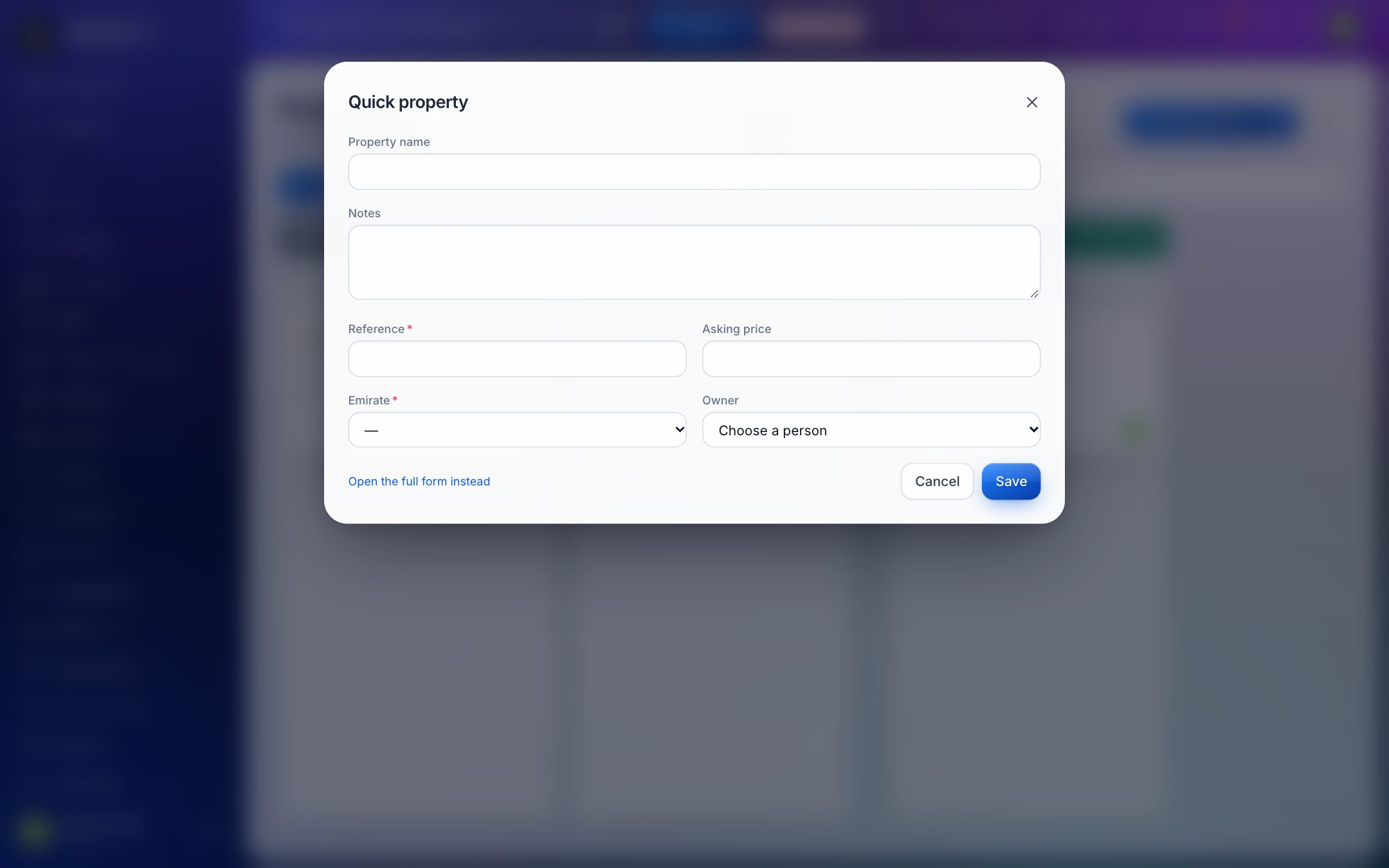
Fill it in and click Save. Need more fields after all? Click Open the full form instead.
To add a record already linked to a deal, contact or company, use the module's tab on that record. See Attach a module to other records.
The record card
Click a record in the list or on the board. Its card opens over the page, the same way a deal does. See Work in a record card for the buttons on its edge.
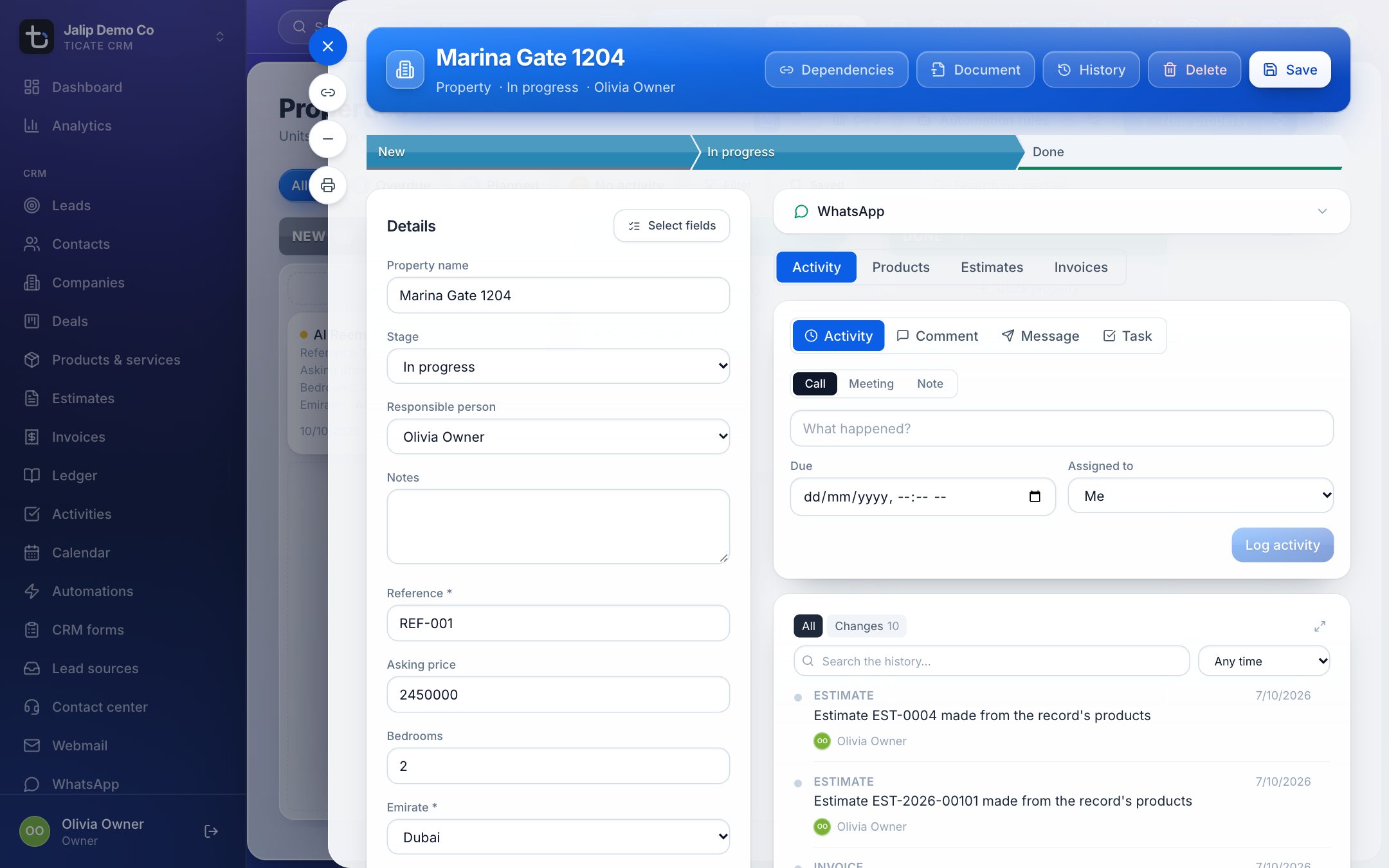
At the top are the record's name and number (each module counts its own records from #1), the module, its stage and its owner. The buttons there are:
- Dependencies: the records linked to this one.
- Document: a PDF or Word file from one of your templates.
- Run a workflow: when your workspace has workflows that can be started by hand on this module.
- Visit: check in at the customer, when your workspace uses TicAte HRMS visits.
- History: every recorded change, newest first.
- Delete and Save, if your role allows them.
Change the details
On the left, Details holds the name, the Stage, the Responsible person and every field of the module. Change what you need: a bar at the bottom says you have unsaved changes. Click Save to keep them, or Cancel to undo them.
Below it:
- Linked records: the contact, company, deal, lead or employee the record belongs to.
- Attached to: the deal, lead, contact and company it is linked to, as links.
- Observers: colleagues who follow the record.
Move it to another stage
For a module with a board, the stages run across the top of the card. Click one to move the record there straight away. You can also choose the Stage under Details and click Save, or drag the card on the board.
Each move is written in the record's history, and can set off the module's automations. See Automate a module.
Log a call, comment, message, set a task
On the right is the same box a deal has, with Activity, Comment, Message and Task, the record's open tasks, and its timeline of everything that happened. A WhatsApp panel above it opens the record's chats. See Work in a record card.
If the module has Products, estimates and invoices switched on, tabs above the box add Products, Estimates and Invoices. See Sell from a module.
If other modules are attached to this one, they show as tabs across the top of the card, after General.
Delete a record
Click Delete at the top of the card and confirm. The record disappears from the module's list and board.