

Add a product or service
Create a catalogue item with its price, unit, tax, codes and stock, and keep it up to date.
Every item in the catalogue saves you typing later: pick it on a deal, estimate or invoice and its price, unit and tax come with it. This article shows how to add one and what each field is for.
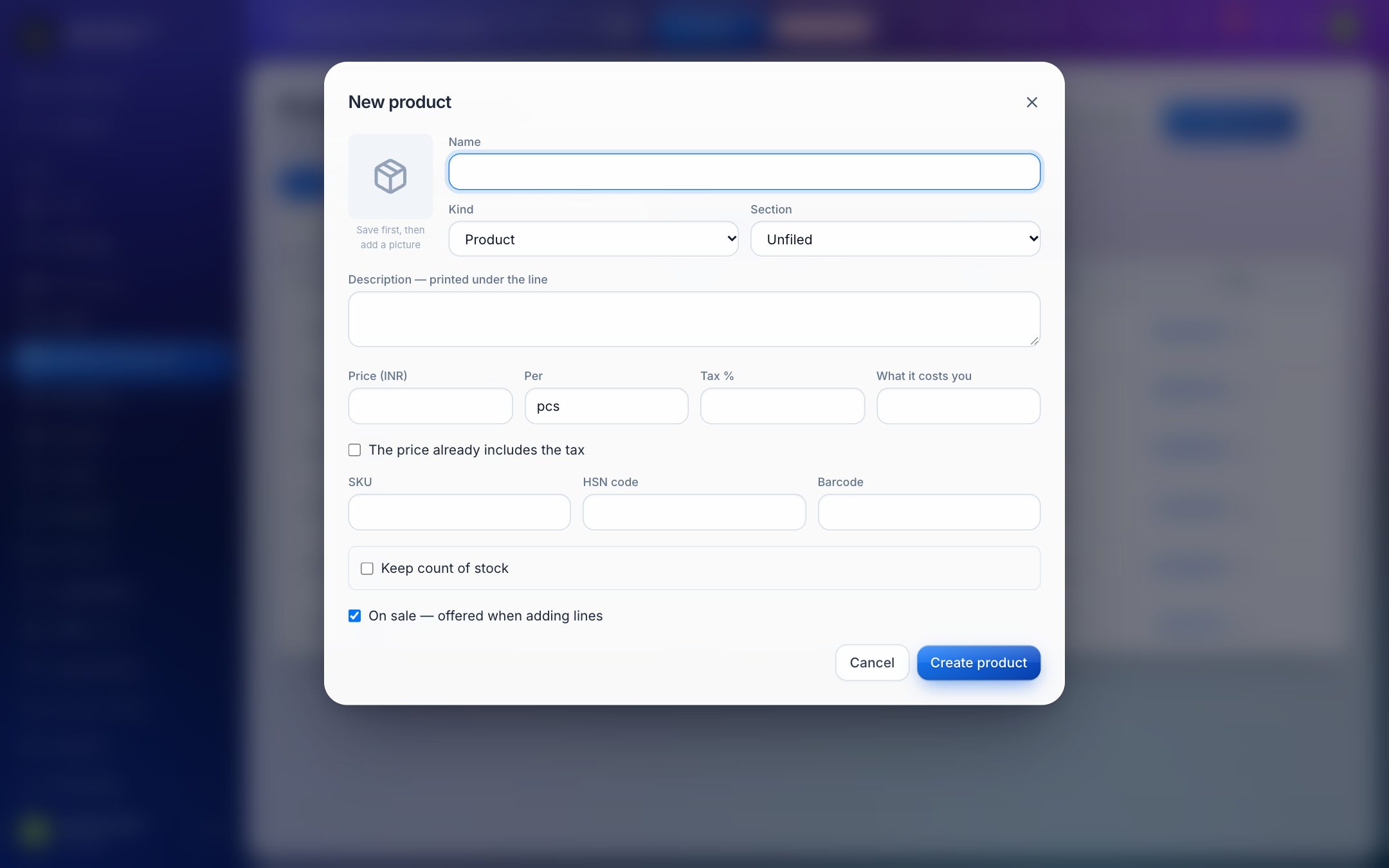
Add a product
- Open Products & services in the left menu.
- Click New product.
- Fill in the Name and the Price. Everything else is optional.
- Click Create product.
Add a service
Click New service instead. The form is the same, with a few differences that suit work rather than goods:
- The unit starts as hr (per hour) instead of pcs.
- The code fields are Service code and SAC code instead of SKU and HSN code.
- There is no barcode and no stock count.
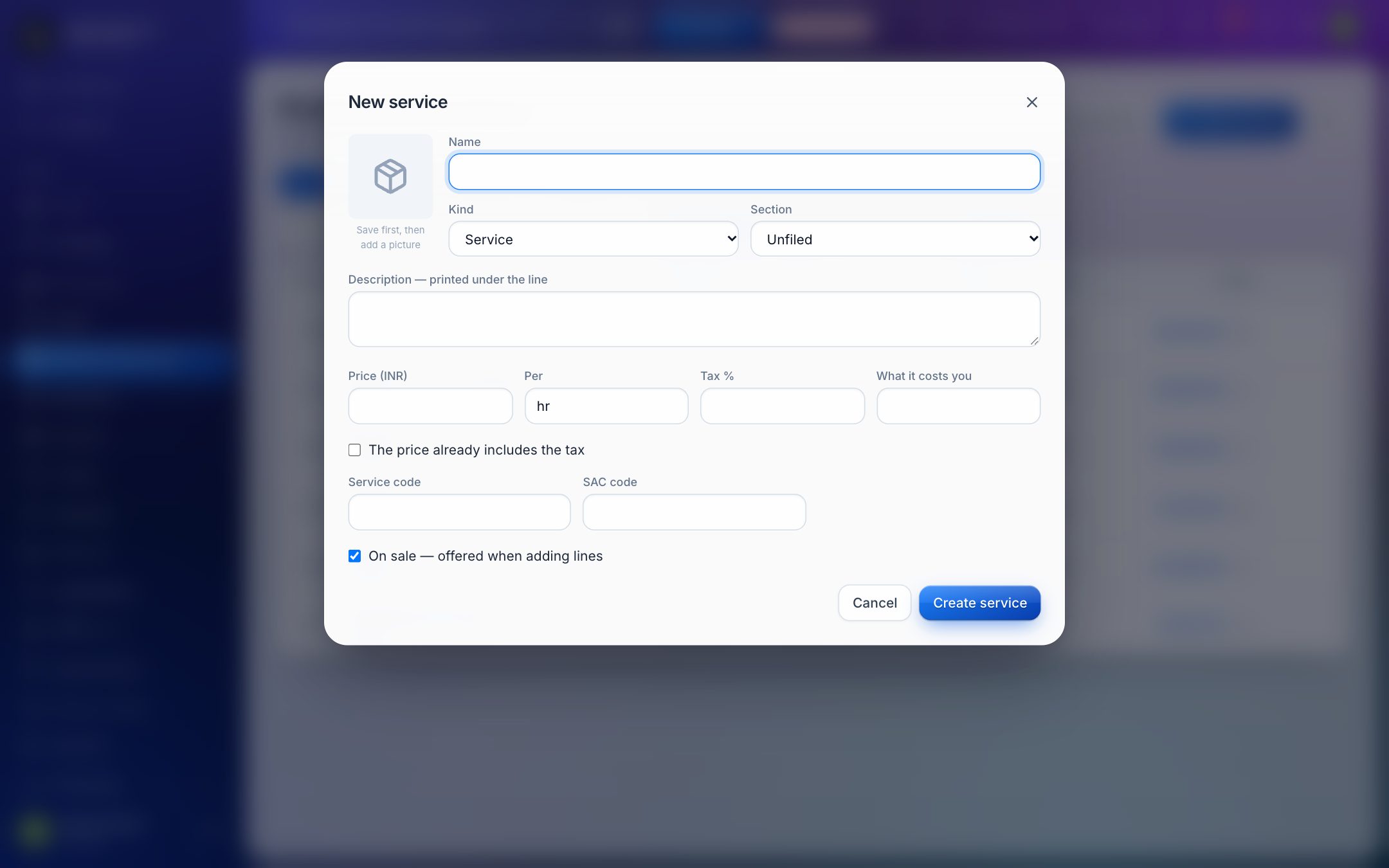
You can switch an item between product and service later with Kind.
What each field means
- Section: the group the item is filed in. Leave it as Unfiled if you do not use sections.
- Description — printed under the line: extra detail that appears under the item's name on estimates and invoices.
- Price and Per: the price for one unit, and the unit itself (pcs, kg, box, hr, day, visit, month).
- Tax %: the tax rate for this item.
- What it costs you: your own cost. When you fill it in, the form shows your Margin in money and as a percentage. Customers never see it.
- The price already includes the tax: tick this if the price you typed is the final price with tax inside it.
- SKU or Service code, HSN code or SAC code, and Barcode: your codes for the item. You can search the catalogue by any of them.
- On sale — offered when adding lines: untick this to stop offering the item without deleting it.
Keep count of stock
For a product, tick Keep count of stock and type how many you have On hand. Issuing an invoice takes the quantity off the shelf; cancelling the invoice puts it back. The catalogue list shows the count, in red when it reaches zero.
Add a picture
Save the item first, then open it again and click Add picture under the image box. PNG, JPEG, WebP and GIF pictures work. Click Change to replace it.
Change, copy or delete an item
- Change it: click the item in the list, edit the fields and click Save.
- Copy it: hover over the row and click the copy icon (Duplicate) at the right. This is quick for items that differ only slightly, such as different sizes.
- Delete it: open the item and click Delete. Estimates and invoices that already use it keep the name and price they were written with.
Who can add, change or delete items depends on their role. See Roles and permissions.