

Contacts overview
What contacts are, how to add them, link them to a company, and see their deals.
A contact is a person you do business with: a customer, a buyer at a client company, a supplier. Unlike a lead, a contact is someone you keep: their deals, messages, estimates and invoices all gather on their card over time.
The contacts list
Open Contacts in the left menu. The heading says how many people you have.
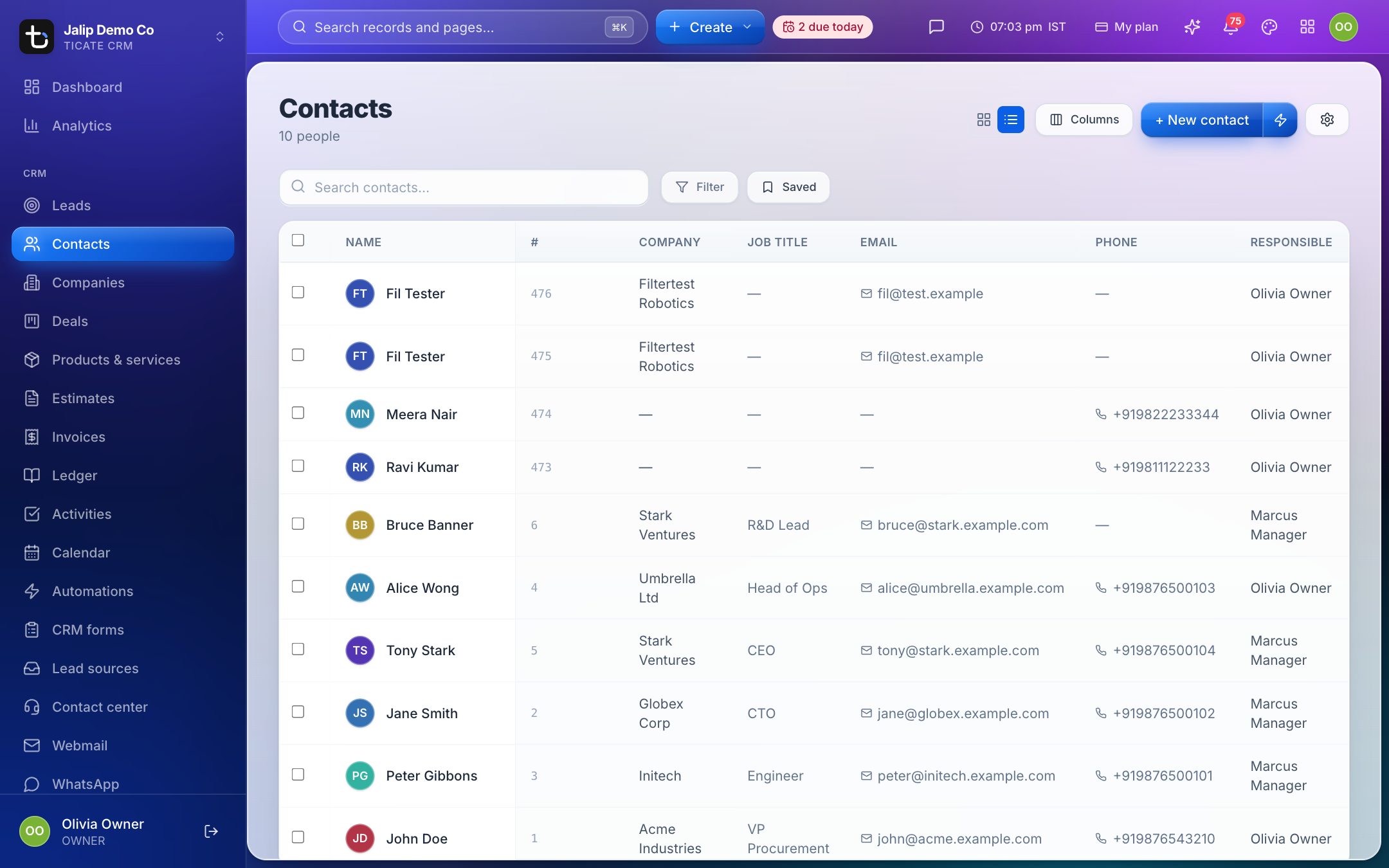
- Switch between List and Cards with the buttons at the top. The page opens on the list.
- Columns (or Card) chooses what is shown: Company, Job title, Email, Phone, Responsible and your own fields.
- Search contacts… finds people by name, email or phone.
- Filter narrows the list by any contact field, and by fields of the contact's company.
See Lists and boards for sorting, saved filters and changing many contacts at once.
Add a contact
- Click + New contact, or Create → Contact in the top bar.
- Type the First name (required) and Last name.
- Add phone numbers and emails. Use Add phone or Add email for more than one.
- Pick the Company they work for. If it is not in the CRM yet, type its name and choose Create company "…".
- Check the Responsible person, fill in any other fields, and click Create contact.
The lightning button next to + New contact opens a quick form with only the essentials. As you type, the CRM warns you if the person may already be in the CRM. See Add a lead for how those warnings work; they are the same for contacts.
Contacts are also created when you convert a lead.
The contact card
Click a name to open the contact.
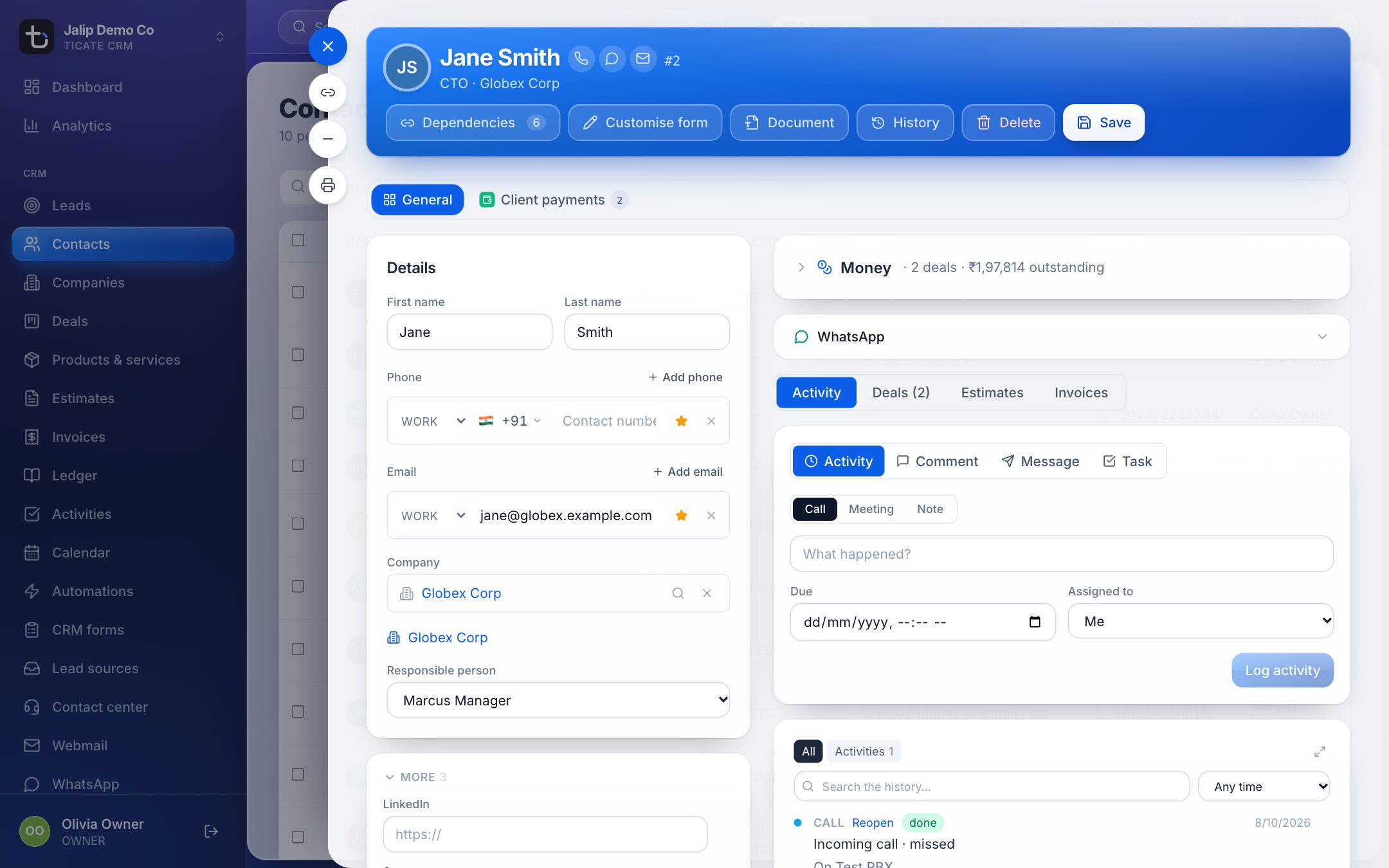
- Details on the left: name, phones and emails, Company and Responsible person. Click Save after a change.
- When the contact has deals, a Money line at the top right sums them up with what is still outstanding. Click it to see Deals, Deal value, Received and Outstanding.
- Tabs on the right:
- Activity: log calls and meetings, leave comments, send messages and set tasks, with the full timeline below. See Work in a record card.
- Deals: every deal this person is linked to, with its stage and value, including won and lost ones.
- Estimates and Invoices: the documents made for them.
Link a contact to a company
On the contact, choose the company in the Company field and click Save. A link to the company appears under the field.
You can also do it from the company: open its Contacts tab and pick the person under Add a contact. See Companies overview.
A contact belongs to one company. To link a person to a deal, see Add a deal and link its contacts and company.