

Two-step sign-in
Protect your account with a code from an authenticator app, and require it of your team.
With two-step sign-in, signing in needs your password and a 6-digit code from an app on your phone. Someone who learns your password still cannot get in without your phone.
You need an authenticator app, such as Google Authenticator, Microsoft Authenticator, 1Password or Authy.
Turn it on
- Click your picture at the top right to open your menu, and choose Two-step sign-in.
- Click Set up two-step sign-in.
- You may be asked for a code we email you first. Enter it under Code we emailed you and click Continue.
- Scan the QR code with your authenticator app. If you cannot scan it, click Can't scan? Type the key instead and type the key into the app.
- Enter the 6-digit code the app shows under Code from the app and click Turn on two-step sign-in.
- You are shown your recovery codes. Copy them and keep them somewhere safe, then click I've saved them.
From now on, every sign-in asks: Enter the 6-digit code from your authenticator app.
If you lose your phone
On the code step, click Lost your phone? Use a recovery code and type one of your recovery codes. Then set up two-step sign-in again on your new phone.
If you have no recovery codes left, ask an owner or admin of your workspace for a let-off (see below).
Get new recovery codes or turn it off
Choose Two-step sign-in in your menu (your picture at the top right). It says how many recovery codes you have left. Enter a current code from the app, then click:
- New recovery codes for a fresh set. The old ones stop working.
- Turn off to stop using two-step sign-in.
If your workspace requires two-step sign-in for your role, Turn off is not available.
Require it for your team (owners and admins)
- Go to Settings. The Workspace page has a Two-step sign-in box.
- Choose who must use it: Not required, Owners and admins, Everyone or Chosen people (tick them in the list).
- Click Save rule.
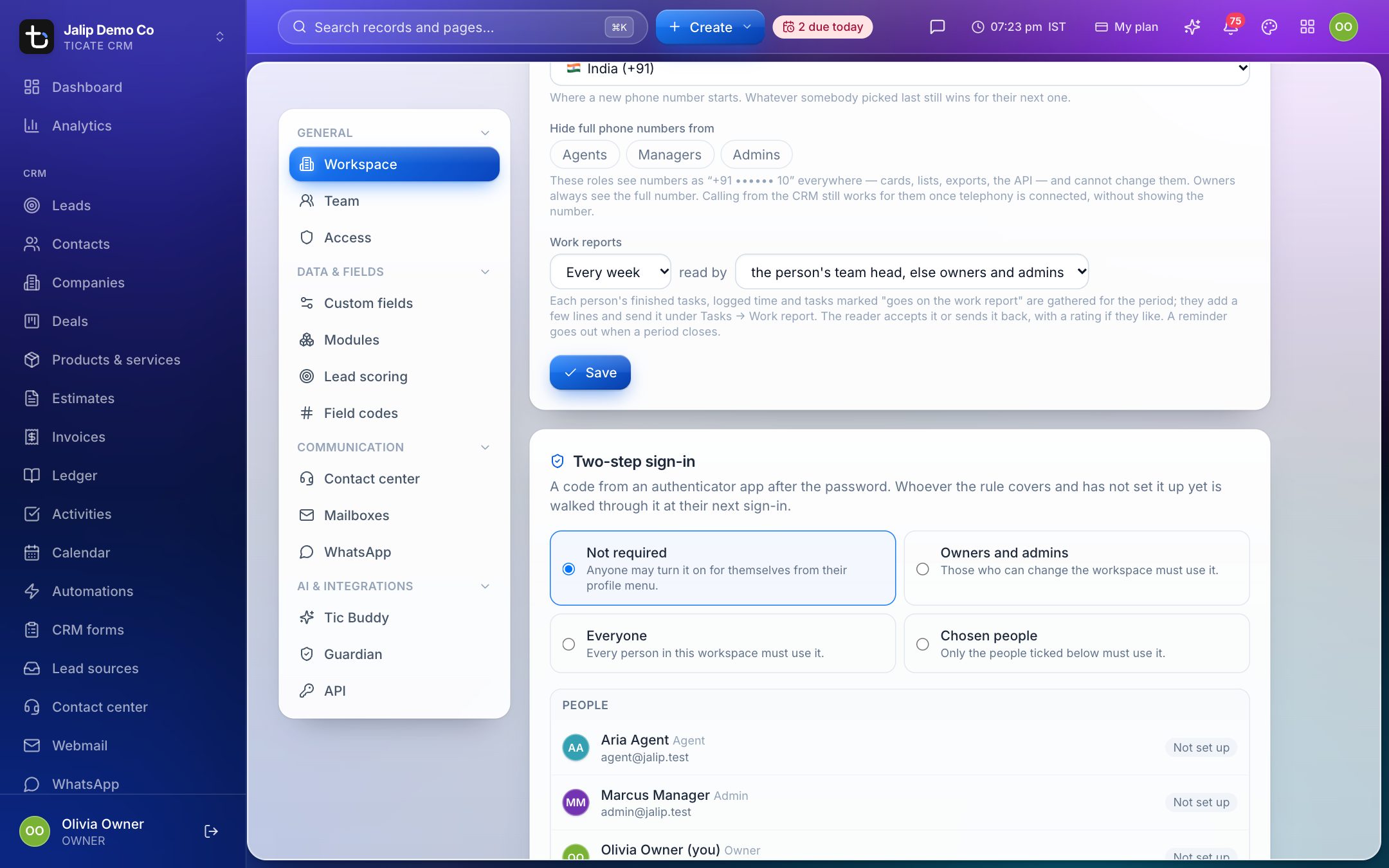
The rule applies from each person's next sign-in: anyone it covers who has not set it up is walked through it then. The list shows who has it Set up and who Will be asked to set up.
If the rule covers you and you have not set it up yet, the button says Set up mine, then save, so the rule cannot lock you out.
Let someone in while they replace a phone
Next to a person in the list, choose Let off for 1 day or 2 days. Until then that person signs in with the password alone and can set up their new phone. Click End to stop it early. You cannot let yourself off, and only an owner can let off another owner.